How to Enable or Disable Energy Saver Always-on Mode in Intune Settings Catalog. In today’s mobile-first landscape, battery performance is no longer a convenience, it’s a cornerstone of productivity. Whether you’re working remotely, traveling for client engagements, or delivering technical workshops, uninterrupted power is essential.
Modern devices are expected to support demanding workloads like real-time AI processing, 4K video editing, and edge computing, all of which place significant strain on battery life. As professionals increasingly rely on high-performance endpoints, optimizing energy consumption becomes a strategic imperative. Microsoft has introduced new power management capabilities in Windows 11, version 25H2, designed to address these evolving needs.
Among the most impactful is the Energy Saver Always-On Mode, which helps extend battery life by reducing background activity and limiting power usage during idle periods. This feature is especially valuable for mobile users and hybrid workforces, where consistent energy efficiency directly translates to longer uptime and reduced dependency on charging infrastructure.
To support scalable deployment of these settings, Microsoft Intune now includes updated Settings Catalog policies that allow administrators to enable or disable Energy Saver across managed devices. By leveraging these policies, IT teams can enforce consistent power-saving configurations, reduce energy consumption, and improve device longevity, all without manual intervention. This centralized approach ensures that Windows 11 endpoints remain optimized for performance and sustainability.
New Settings Catalog Policies for Windows 11, Version 25H2
For organizations focused on mobility, automation, and environmental impact, these enhancements offer a powerful opportunity to align device management with operational goals. Whether you’re managing enterprise laptops, or field devices, integrating Energy Saver policies via Intune empowers you to deliver smarter, more resilient computing experiences. In this article, we’ll walk through how to configure this policy using Intune’s Settings Catalog for Windows 11, version 25H2.
The Intune Settings Catalog provides a centralized, comprehensive view of all configurable settings available for Windows devices. This streamlined interface simplifies the process of creating policies and ensures administrators can easily discover and apply relevant configurations. For those accustomed to managing settings through on-premises Group Policy Objects (GPOs), the catalog offers a seamless transition to cloud-based policy management with granular control.
With the release of Windows 11, version 25H2, Microsoft Intune has expanded its support to include 36 new policy settings specific to this latest OS version. This update empowers IT administrators to confidently manage and secure endpoints running Windows 11 (25H2) from the moment they are deployed – whether in pilot environments or full-scale production.
Microsoft continues to invest in the scalability and responsiveness of the Settings Catalog infrastructure, ensuring timely integration of new Windows policy settings as they become available. These enhancements reflect a commitment to helping organizations stay current with evolving OS capabilities while maintaining consistent policy enforcement across their device fleet. The following table, courtesy of Microsoft – outlines the newly added settings now available for configuration via the Intune Settings Catalog.
| Category Name | Name | Friendly Name |
|---|---|---|
| Administrative Templates\Windows Components\App Package Deployment | RemoveDefaultMicrosoftStorePackages | Remove Default Microsoft Store packages from the system. |
| Administrative Templates\Windows Components\Sync your settings | EnableWindowsBackup | Enable Windows Backup |
| Auditing | AccountLogonLogoff_AuditGroupMembership | Account Logon Logoff Audit Group Membership |
| Human Presence | ForceOnlookerDetectionAction | Force Onlooker Detection Action |
| Human Presence | ForceOnlookerDetection | Force Onlooker Detection |
| Microsoft App Store | ConfigureMSIXAuthenticationAuthorizedDomains | Configure MSIX Authentication Authorized Domains |
| News And Interests | DisableWidgetsBoard | Disable Widgets Board |
| News And Interests | DisableWidgetsOnLockScreen | Disable Widgets On Lock Screen |
| Power | EnableEnergySaver | Enable Energy Saver |
| Printers | RequireIppsPolicy | Require Ipps Policy |
| Privacy | LetAppsAccessSystemAIModels | Let Apps Access System AI Models |
| Start | TurnOffAbbreviatedDateTimeFormat | Turn Off Abbreviated Date Time Format (User) |
| Start | HideCategoryView | Hide Category View (User) |
| Start | ConfigureStartPins | Configure Start Pins (User) |
| Start | AlwaysShowNotificationIcon | Always Show Notification Icon (User) |
| Start | ConfigureStartPins | Configure Start Pins |
| Start | HideCategoryView | Hide Category View |
| System | AllowOOBEUpdates | Allow OOBE Updates |
| Windows AI | SetMaximumStorageSpaceForRecallSnapshots | Set Maximum Storage Space For Recall Snapshots |
| Windows AI | DisableSettingsAgent | Disable Settings Agent |
| Windows AI | AllowRecallEnablement | Allow Recall Enablement |
| Windows AI | SetDenyAppListForRecall | Set Deny App List For Recall (User) |
| Windows AI | DisableClickToDo | Disable Click To Do (User) |
| Windows AI | SetCopilotHardwareKey | Set Copilot Hardware Key (User) |
| Windows AI | SetDenyAppListForRecall | Set Deny App List For Recall |
| Windows AI | DisableImageCreator | Disable Image Creator |
| Windows AI | DisableCocreator | Disable Cocreator |
| Windows AI | SetMaximumStorageSpaceForRecallSnapshots | Set Maximum Storage Space For Recall Snapshots (User) |
| Windows AI | DisableClickToDo | Disable Click To Do |
| Windows AI | SetDenyUriListForRecall | Set Deny Uri List For Recall (User) |
| Windows AI | DisableGenerativeFill | Disable Generative Fill |
| Windows AI | SetDenyUriListForRecall | Set Deny Uri List For Recall |
| Printers | RequireIppsPolicy | Require Ipps Policy |
| Display | ConfigureMultipleDisplayMode | Configure Multiple Display Mode (User) |
| Windows Backup And Restore | EnableWindowsRestore | Enable Windows Restore |
| System | AllowOOBEUpdates | Allow OOBE Updates |
Learn More About Enable Energy Saver Policy
The Enable Energy Saver Always-On Mode policy is designed to significantly extend battery life and reduce overall energy consumption by enforcing Energy Saver mode at all times. When this policy is enabled, Energy Saver remains active on both desktops and laptops, regardless of battery level or whether the device is connected to AC or DC power.
If the policy is disabled or not configured, Energy Saver will activate based on the threshold defined by the EnergySaverBatteryThreshold Group Policy setting. This fallback behavior may result in inconsistent energy savings, especially on devices with variable battery levels or usage patterns.
This is a device-scope policy, meaning it applies at the system level rather than per user. For administrators looking to implement this configuration via Microsoft Intune, refer to the OMA-URI path provided below to understand how the policy is structured and deployed within your environment.
./Device/Vendor/MSFT/Policy/Config/Power/EnableEnergySaverThe allowed data type for this policy is Integer (int), with valid values of and . Setting the value to 1 enables the Energy Saver Always-On Mode, ensuring that Energy Saver remains active at all times, regardless of battery level or power source.
Conversely, setting the value to 0 disables the policy, allowing Energy Saver to operate based on the system-defined threshold or other configured conditions. By default, the policy value is set to 1, meaning Energy Saver is enforced across all devices unless explicitly modified.
Step by Step to Enable or Disable Energy Saver Always-on Mode
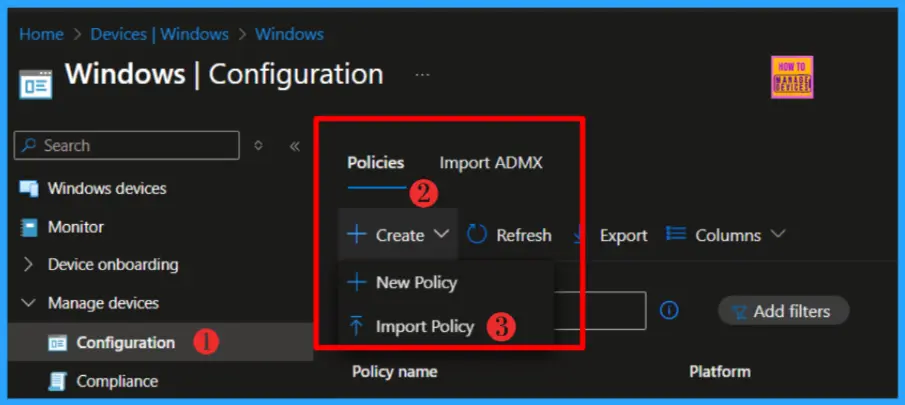
Let’s learn how to Step by Step to Enable or Disable Energy Saver Always-on Modeusing Intune Policy Settings Catalog. Make sure you have enough access to create the Intune policy.
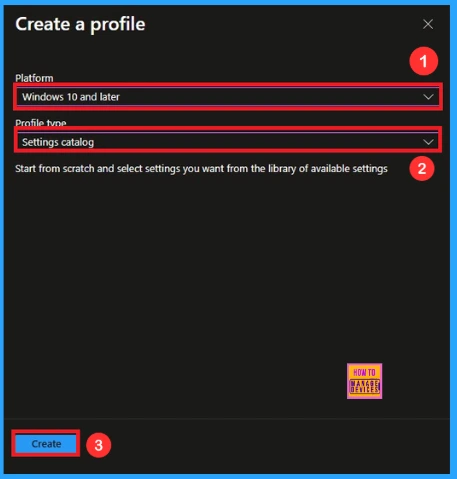
You can see a create a profile window, add the platform Windows 10 and later, profile type Settings Catalog. Then click the create button.
Navigate to the Basics tab and input the Name and Description for the profile. I recommend to give a meaning full Name and Description in the Basics tab.
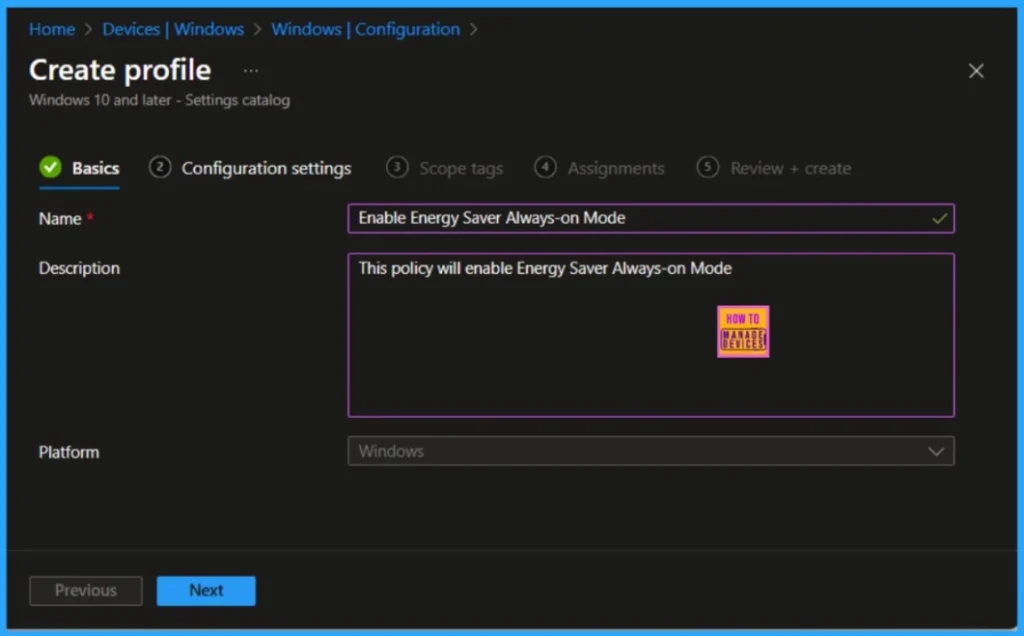
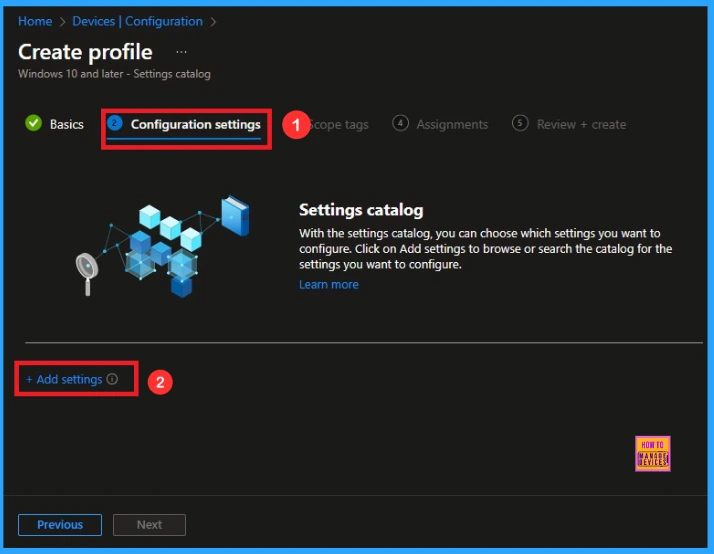
Click Next to proceed further. When you click Next, you will get Configuration Settings section. In the Configuration Settings section, under Settings Catalog, click Add Settings.
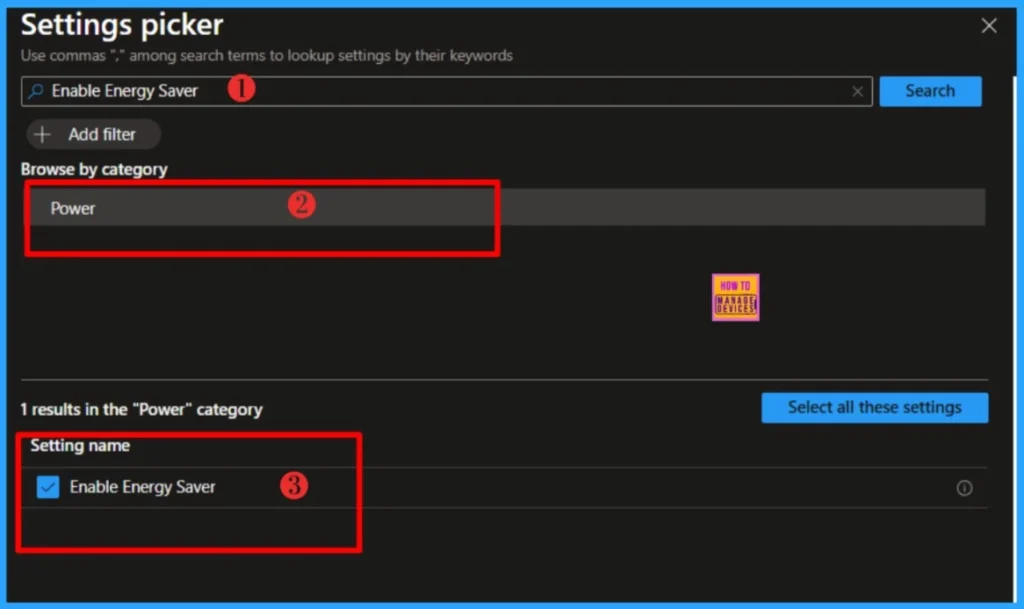
In the next tab, type “Enable Energy Saver” in the search box and click Search. Select Power and Click Enable Energy Saver from the search results. Click Next to continue.
NOTE! This policy will extend battery life and reduce energy consumption by enabling Energy Saver to always be on. Energy Saver will always be on for desktops as well as laptops regardless of battery level for both AC and DC. If you disable or don't configure this policy setting, then Energy Saver will turn on based on the EnergySaverBatteryThreshold group policy.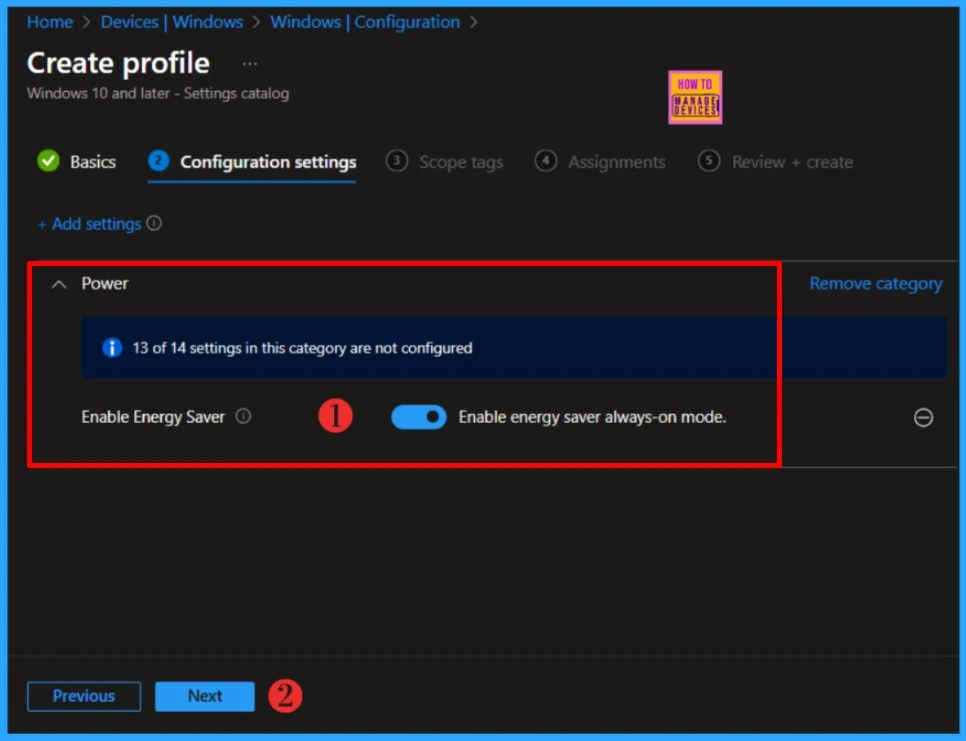
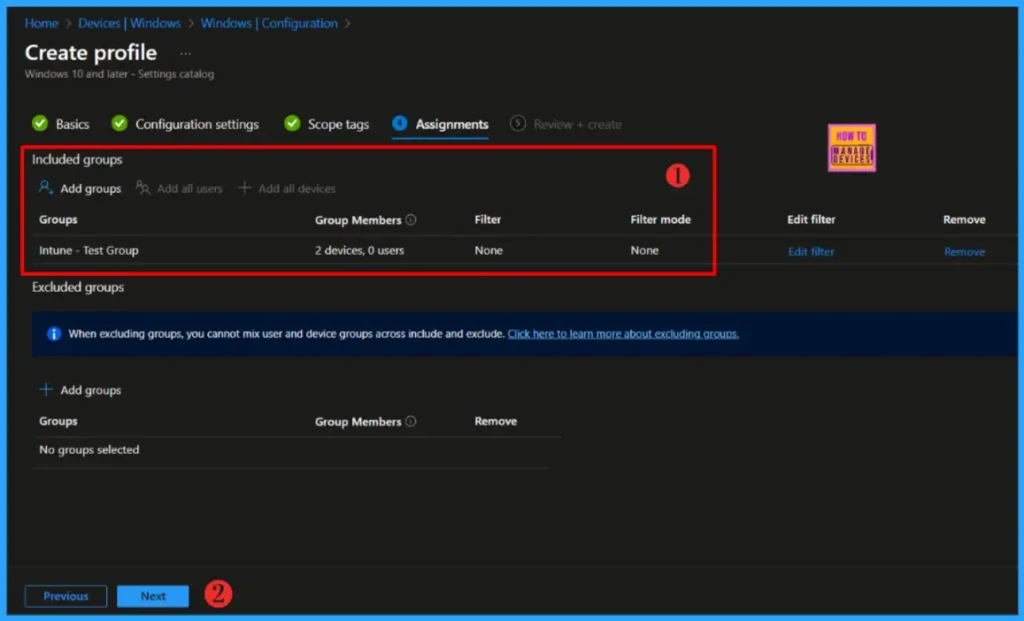
Click Next to display the Scope tags page. Add the Scope tags if you wish and click Next to assign the policy to computers. I will deploy it to the Intune – Test Group Device Group.
Read more :Intune Scope Tags Implementation Guide
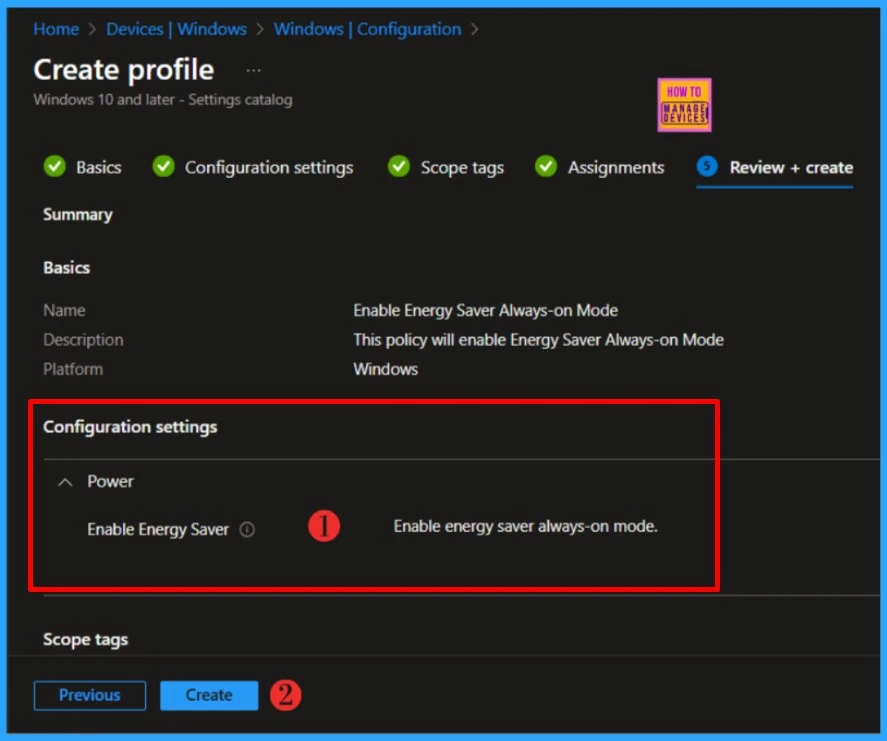
Please take a moment to carefully review all the settings you’ve defined for the Enable Energy Saver Always-on Mode policy on the “Review + Create” page. When you’re ready, select “Create” to implement the changes.
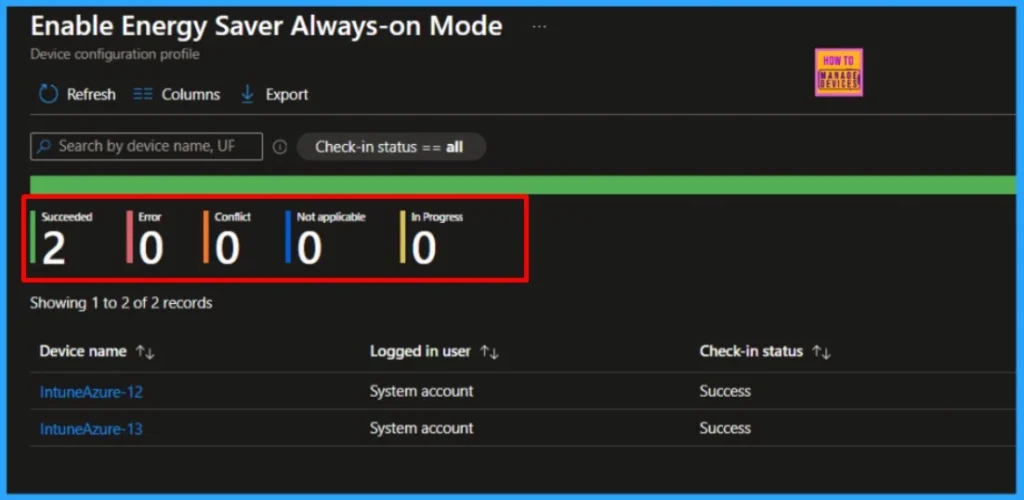
Monitor Configuration Profile Deployment in Microsoft Intune
The Configuration Profile is deployed to Microsoft Entra groups. Let’s see how we can monitor the deployment and installation status from the Intune portal. To monitor the Intune policy assignment, follow these steps:
- Navigate to the list of Configuration and select the policy you targeted.
- Check the device and user check-in status from here.
- If you click “View Report,” you can see additional details.
Event Log to Verify Intune Policy Deployment Status
To verify the successful implementation of String or Integer policies on Windows 10 or 11 devices through Intune, you can leverage event IDs 813 and 814. These event IDs provide valuable insights into the application status of the policy as well as the specific value assigned to the policy on those devices.
In the case of this particular policy, the value is String and is linked to the event ID 813. Analyzing these event IDs lets you understand the policy’s application status and corresponding value on the devices in question.
To confirm this, check the Event log path – Applications and Services Logs – Microsoft – Windows – Devicemanagement-Enterprise-Diagnostics-Provider – Admin.
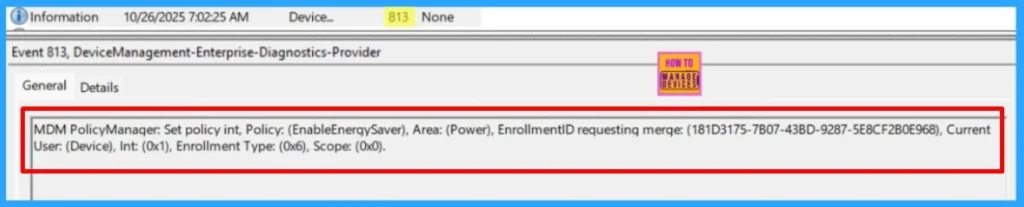
MDM PolicyManager: Set policy int, Policy: (EnableEnergySaver), Area: (Power), EnrollmentID requesting merge: (181D3175-7B07-43BD-9287-5E8CF2B0E968), Current User: (Device), Int: (0x1), Enrollment Type: (0x6), Scope: (0x0).I trust that this article will significantly benefit you and your organization. I appreciate your patience in reading this post. I look forward to seeing you in the next post. Keep supporting the HTMD Community.
Need Further Assistance or Have Technical Questions?
Join the LinkedIn Page and Telegram group to get the latest step-by-step guides and news updates. Join our Meetup Page to participate in User group meetings. Also, Join the WhatsApp Community to get the latest news on Microsoft Technologies. We are there on Reddit as well.
Author
About the Author: Sujin Nelladath, a Microsoft Graph MVP with over 11 years of experience in SCCM device management and Automation solutions, writes and shares his experiences with Microsoft device management technologies, Azure, DevOps and PowerShell automation.
Game Center
Game News
Review Film
Berita Olahraga
Lowongan Kerja
Berita Terkini
Berita Terbaru
Berita Teknologi
Seputar Teknologi
Berita Politik
Resep Masakan
Pendidikan
Berita Terkini
Berita Terkini
Berita Terkini
review anime
Gaming Center
Originally posted 2025-10-28 12:08:08.