
Let’s discuss Optimize Conditional Access Agent in Entra to Fix Security Blind Spots. It Automatically Strengthens Conditional Access Policies. Microsoft introduced the Conditional Access Optimization Agent in Microsoft Entra at its Ignite 2025 event.
The Conditional Access Optimization Agent in Microsoft Entra is a new abilities that helps organizations automatically strengthen and streamline their organizations Conditional Access policies by implementing Microsoft best practices and Zero Trust learning.
It evaluates existing policies, recommends repairand generate reports to highlight configuration error or gaps. The main function of Conditional Access Optimization Agent policy coverage checks, policy review reports, and optimization actions.
With policy coverage checks, admins can ensure all users, applications, and the agent’s identity is protected by Conditional Access. Recommend new policy or updates to existing ones, in line with Zero Trust principle.

Optimize Conditional Access Agent in Entra to Fix Security Blind Spots
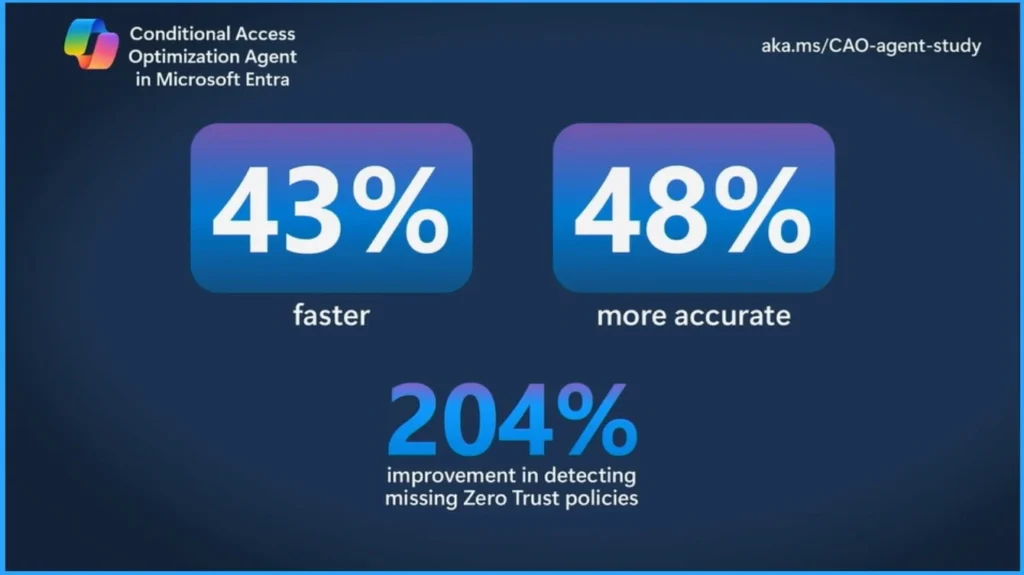
When an admin uses the Conditional Access Optimization Agent, the admin can perform conditional access tasks 43% faster, 48% more accurate. And one of the tasks that this agent performs is to help detect the loss of zero-trust policies or basic policies. Correct 204% more accurate in finding the baseline missing policy with this agent.
| Feature |
|---|
| Simplifies Administration |
| Improve Security Posture |
| Supports Zero Trust |
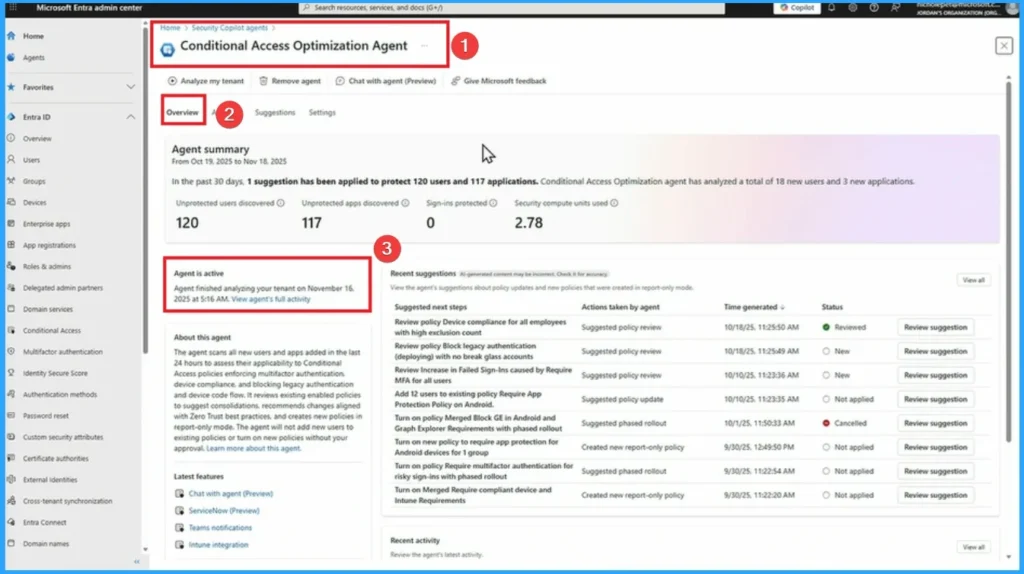
Here are the Conditional Access Optimization agents. this agent acts like a “policy coach” inside Entra helps you not only enforce Conditional Access but also continually improve it to keep it in line with best practices and Zero Trust.
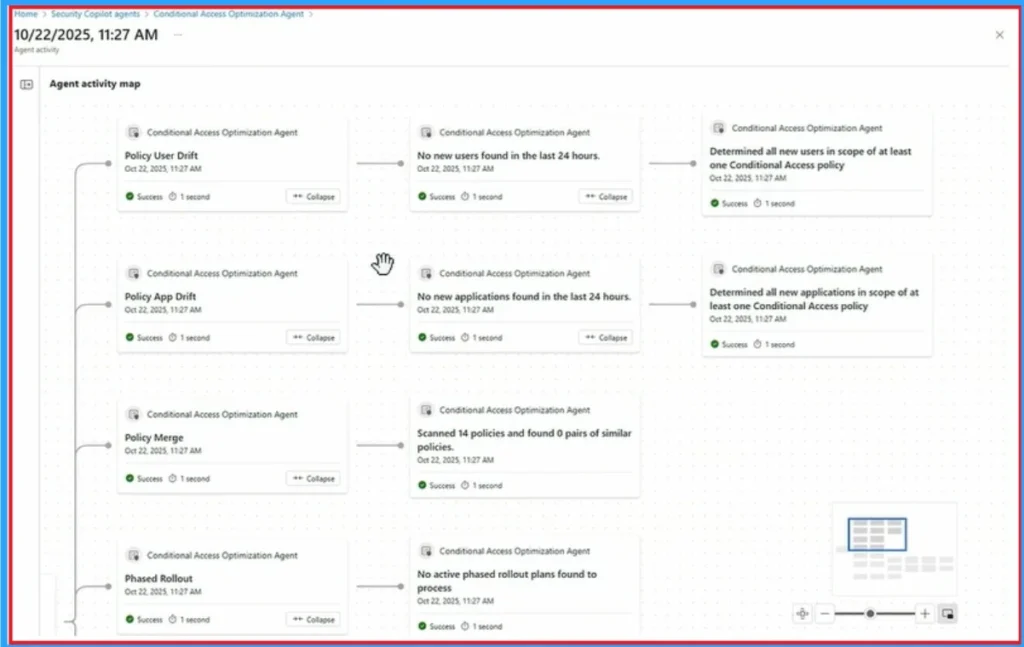
Activity Map in Conditional Access Optimization Agent
“Activity Map” in the Conditional Access Optimization Agent is designed to provide administrators with a clear visual representation of how Conditional Access policies are applied across users, applications, and login activity highlighting gaps, overlapand risk.
Device Compliance for All Employees
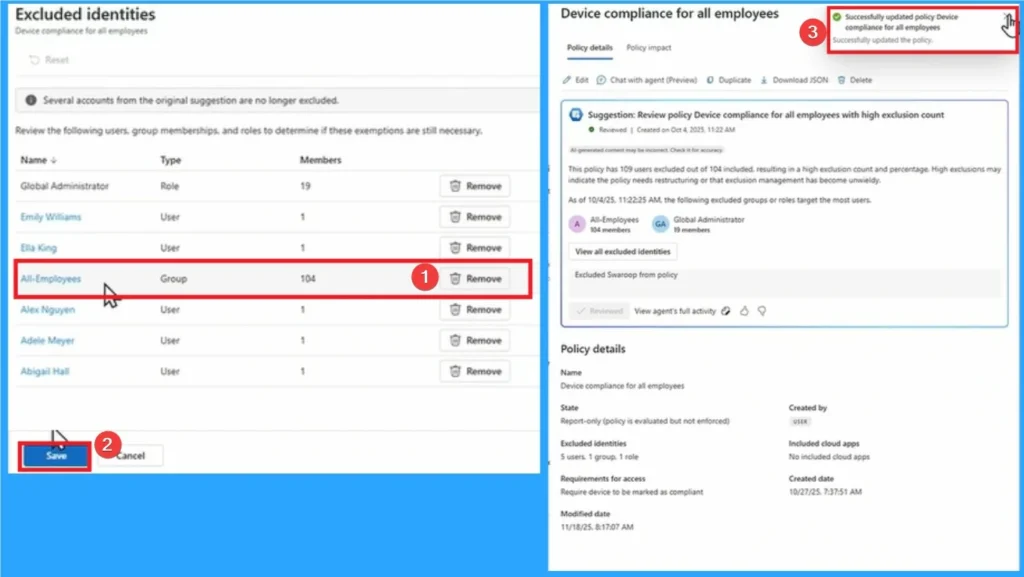
On Conditional Access Optimization Agent here select, Device Compliance for all employees to review. Here I click See all excluded identity. Take a look at the screenshot below.
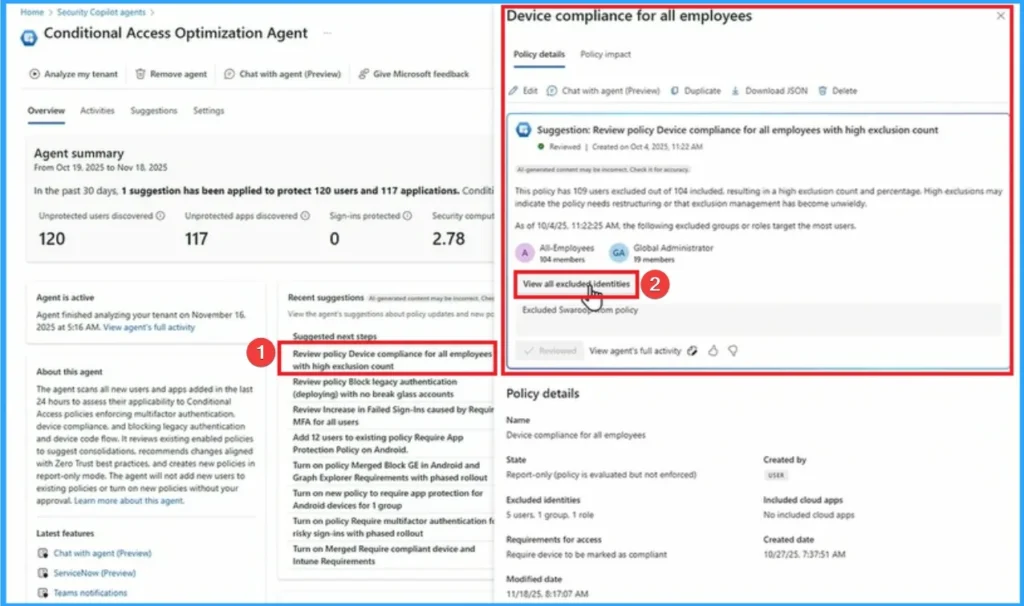
In the Excluded identities window, all employee identities will be excluded. Then I click on Delete button then this identity is excluded and click Keep knob.
Block Legacy Authentication
Block Legacy Authentication automatically detects where legacy authentication is still in use and recommends blocking policies to close them gap.

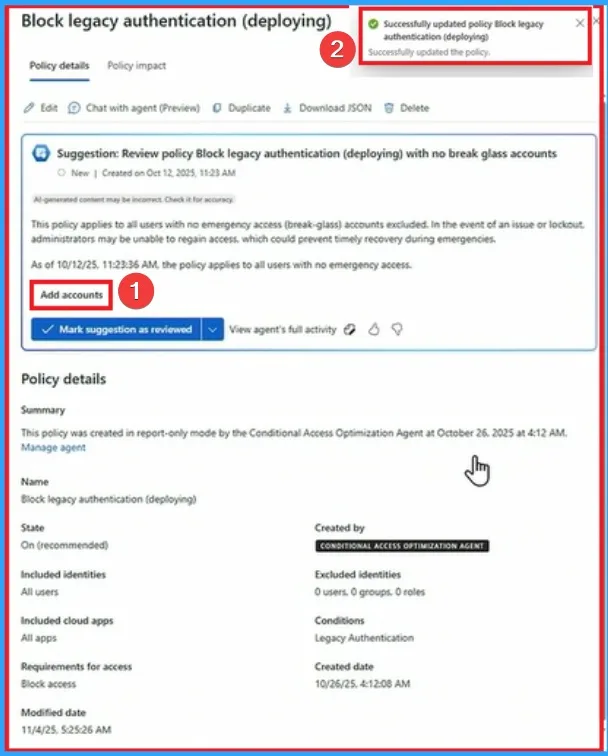
This policy applies to all users who do not have emergency access (broken glass) account excluded. If a problem or lockout occurs, the administrator may not be able to do so regain accesswhich can prevent timely recovery during an emergency.
- Click on the Add Account button
Block Multifactor Authentication for Risky Logins
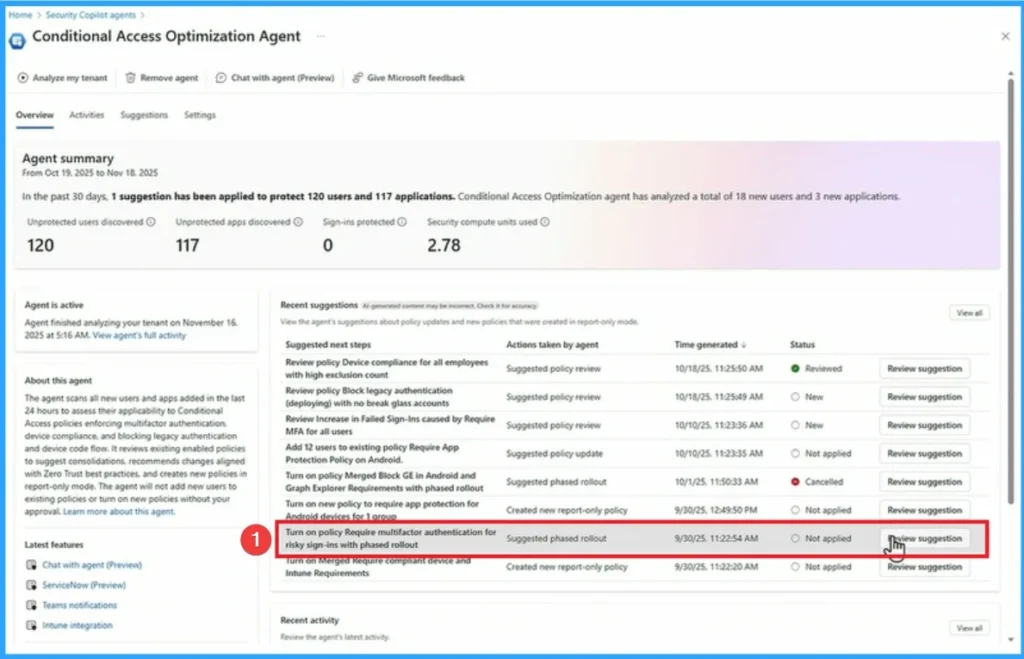
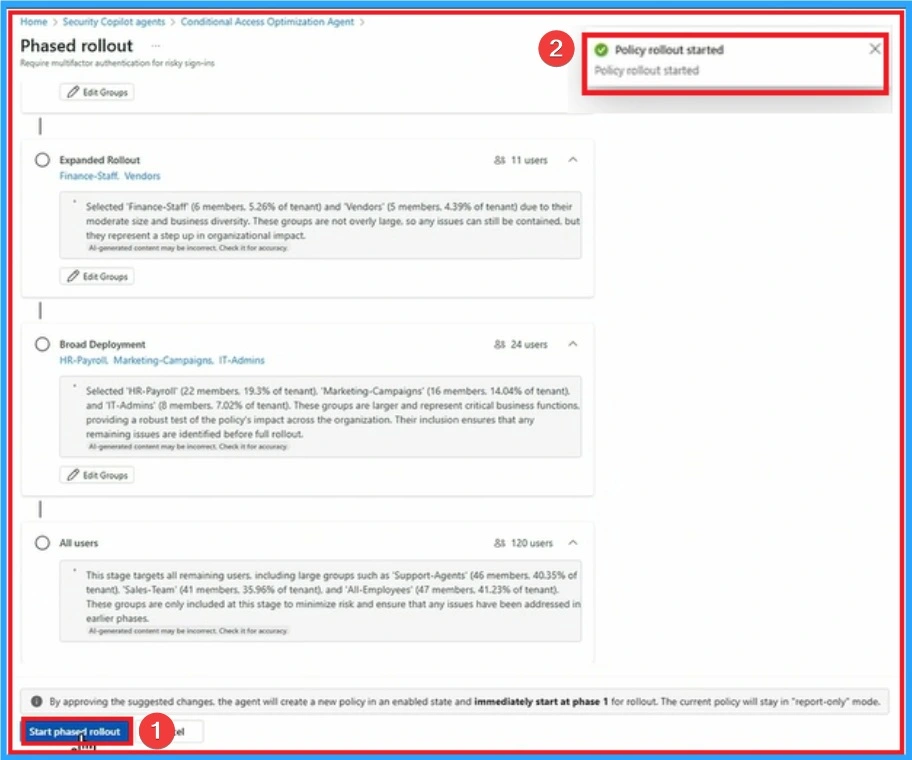
Next we will review Block Multifactor Authentication for Risky Logins. For this click on Block Multifactor Authentication for Risky Logins under Conditional Access Optimization Agent.
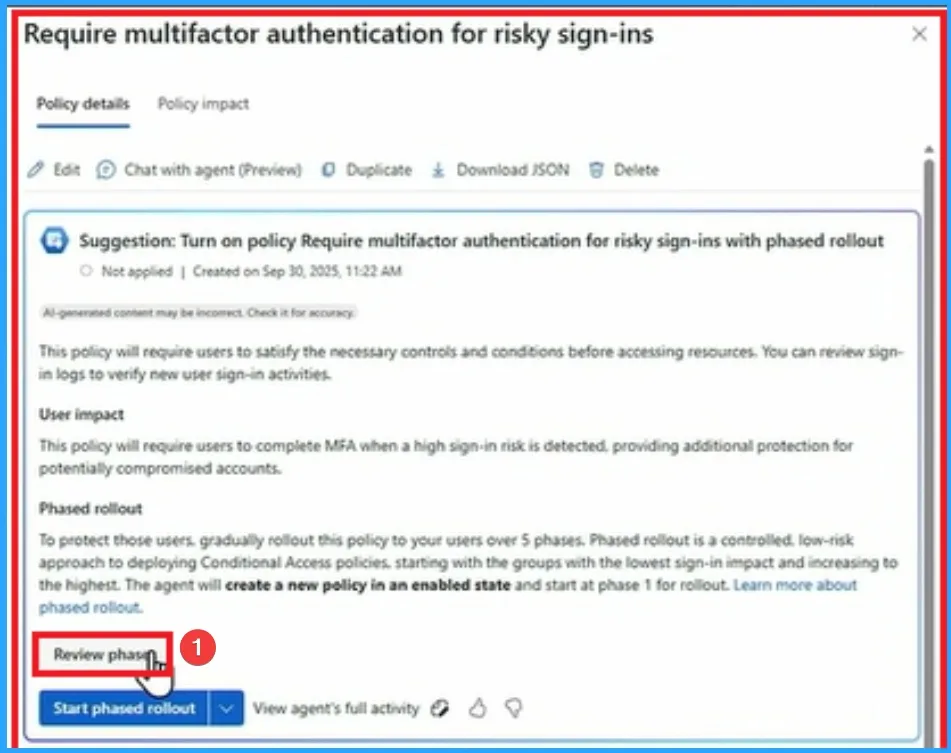
To protect these users, gradually roll out this policy to your users in 5 phases. The gradual rollout is controlled. low-risk approach to implementation Conditional Access Policystarting with the group with the lowest login impact and working up to the highest. The agent will create a new policy in the enabled state and start on phase 1 launch.
- Click on Exit Stage Overview
Five stages in The Phased Rollout of the Conditional Access Optimization Agent in Microsoft Entra is Report Only Policy Creation, Pilot Group Launch, Expanded RolloutFull Launch.
- Report Only Policy Creation – The agent creates Conditional Access policies in report only mode so admins can see the potential impact without forcing it.
- Pilot Group Launch – These policies are applied to a small, controlled group of users or applications to validate behavior.
- Expanded Rollout – The scope expands to include more users, applications, or groups after a successful trial.
- Full Launch – This policy is applied throughout the organization, ensuring comprehensive coverage.
- Monitoring & Adjustment – Admins monitor logins and optimization reports, making improvements if anomalies or glitches are detected
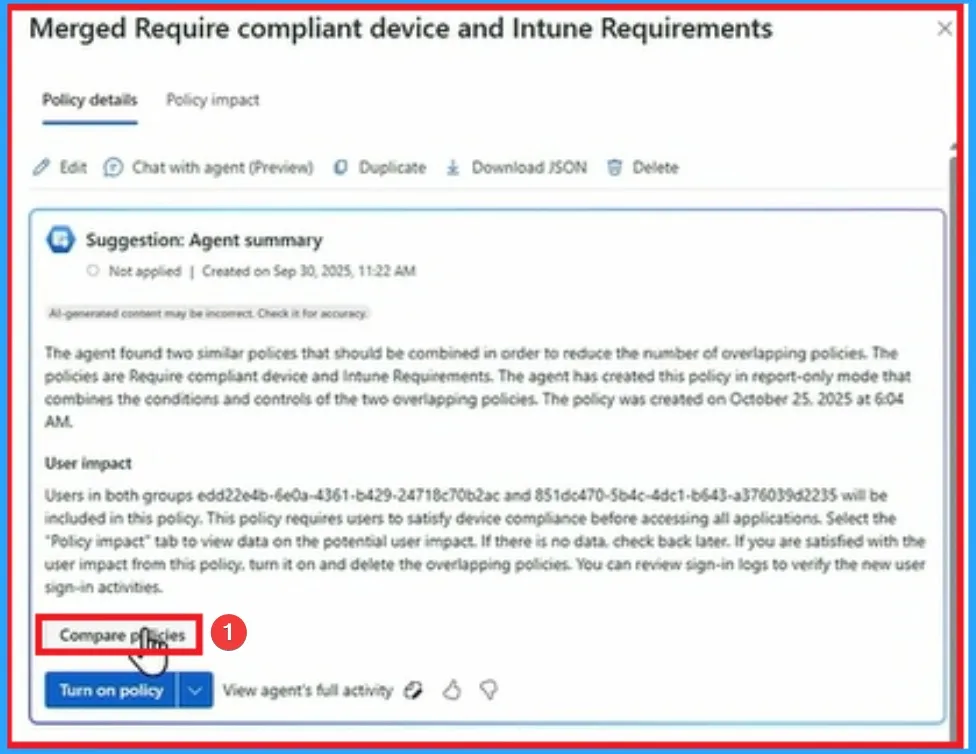
Merging Requires Compliant Device and Intune Requirements
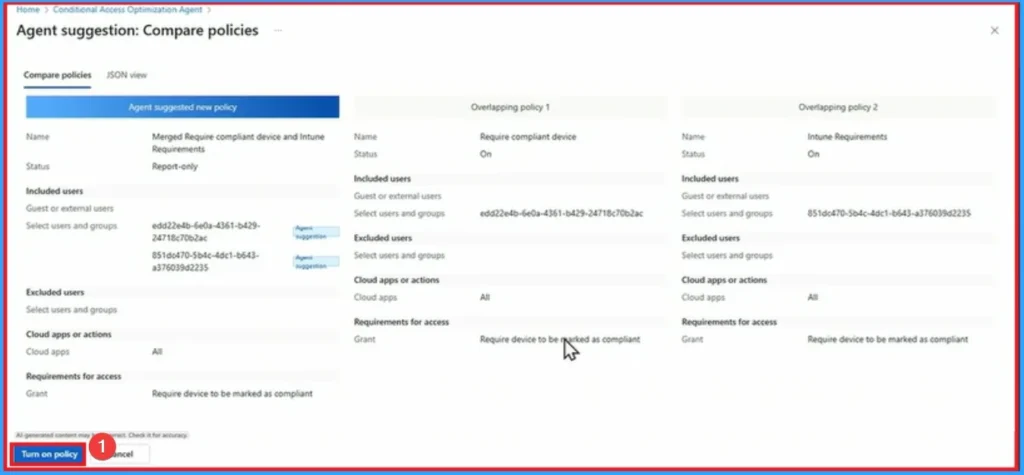
Agents found two similar policy that should be combined to reduce the number of overlapping policies. The policy is Mandatory appropriate device and Intune Requirements. The agent has created this policy in report-only mode combining conditions and controls for both overlap policy.
You go and create a policy in Intune that you use Defender maybe you have a duplicate policy or maybe there’s a gap so it’s not being used correctly. Now this will help fix that gap.
Need More Help or Have a Technical Question?
Join LinkedIn Page And Telegram Group to get step by step guides and latest news updates. Join us Meeting Page to participate in User group meetings. Also, Join WhatsApp Community to get the latest news about Microsoft Technologies. We were there reddit as well.
Author
Anoop C Nair has been a Microsoft MVP from 2015 onwards for 10 years in a row! He is a Workplace Solutions Architect with over 22+ years of experience in the Workplace technology space. He is also a Blogger, Speaker, and Local User Group Community leader. The main focus is on Device Management technologies such as SCCM and Intune. He writes about technologies like Intune, SCCM, Windows, Cloud PC, Windows, Entra, Microsoft Security, Career, etc.
Game Center
Game News
Review Film
Berita Olahraga
Lowongan Kerja
Berita Terkini
Berita Terbaru
Berita Teknologi
Seputar Teknologi
Berita Politik
Resep Masakan
Pendidikan
Berita Terkini
Berita Terkini
Berita Terkini
review anime
Gaming Center
Originally posted 2025-11-28 16:40:55.


