Important Points
- These policies help control software security in Windows Package Manager.
- When policy is enabledusers can install applications even if SHA256 validation fails.
- When policy is disabledonly fully verified and safe applications can be installed.
- Intune makes things easy for IT to manage these settings on all devices.
Hey, let’s discuss about How to Control SHA256 Validation in Windows Package Manager using Intune. This policy controls whether users can do this turn off SHA256 security check in Windows Package Manager. SHA256 is a security check that ensures an application or package is secure not changed or damaged before installation.
This policy is important because of that protect the device from unsafe or modified software. If SHA256 validation is bypassed, the chances are greater installing malicious applications. By managing these policies, organizations can defend their devices secure and ensure only trusted software is installed.
If this policy allows overrideusers can install applications even if the SHA256 check fails. When the blocking policy is overridden, users cannot change the settings and SHA256 validation always enforced. This gives the IT team complete control software security on managed devices.
In a office environmentIT admins can block SHA256 overrides so employees can’t installing unsafe software. For example, in companies that handle sensitive data, this is helpful prevent malware and keep company information safe.
What are the Benefits of Enabling this Policy using Intune?
Enable this policy giving IT administrators more flexibility and control when managing software installations. This allows trusted users or teams to do so install the required applications even when SHA256 validation fails useful in testingdevelopment, or specific business scenarios.
1. Allows custom installation or internal applications
2. Assist with development and testing the team works without delay
3. Reduce dependency on manual solutions
4. Provides flexibility while still being managed by IT
5. Useful for labs, pilots, and non-production environment
How to Control SHA256 Validation in Windows Package Manager using Intune
In a development or testing environment, admin may allow SHA256 replacement. For example, a developer might test an internal or custom application requires flexibility. This policy allows for that flexibility but still exists managed centrally using Intune.
Create a Profile
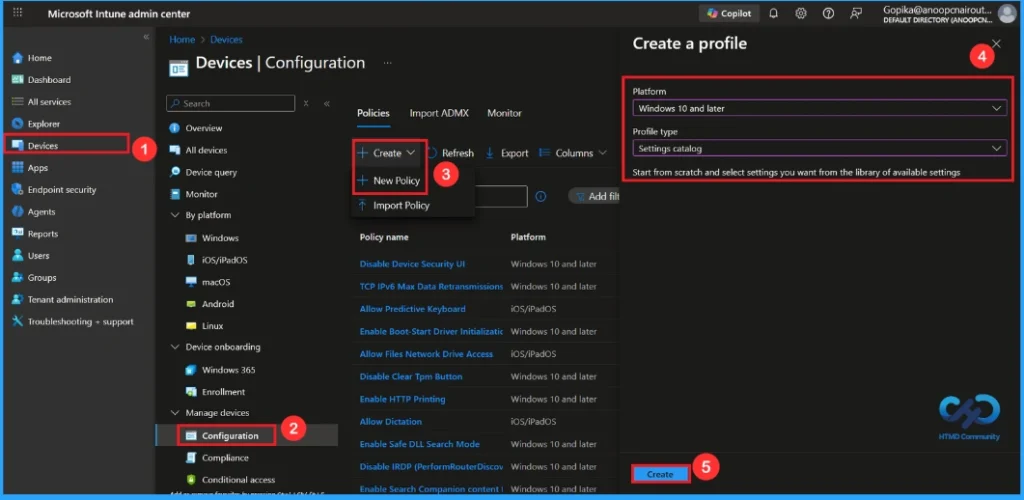
To start configuring this policy, go to Microsoft Intune admin center. Go to Devices > Configuration From Policies, click on + Create button and select +New Policy. To make policies You must specify the profile type and Platform. From this window you can select it.
| Platforms | Profile Type |
|---|---|
| Windows 10 and later | Settings Catalog |
Basic Steps
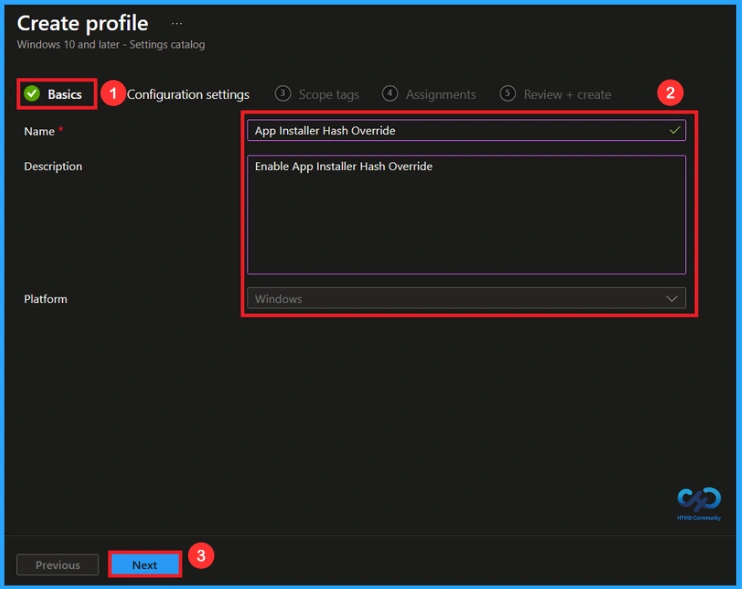
basic tab, help you add Name (App Installer Hash Replacement) And Description(Enable Hash Override App Installer) for the policy you want to create. Her name is Must file, and you have to enter the Name here. The description is optional. Click Next to continue.
Configuration Settings
He Configuration tabs are very important because they help you select certain settings. On the Configuration tab, click on +Add settings hyperlink, and then you will get Settings Selector. From the Settings Picker, you can quickly select settings by browsing by category or the Search bar.
- Category – Windows Components Desktop Application Installer Administrative Templates
- Settings – Enable App Installer Hash Override
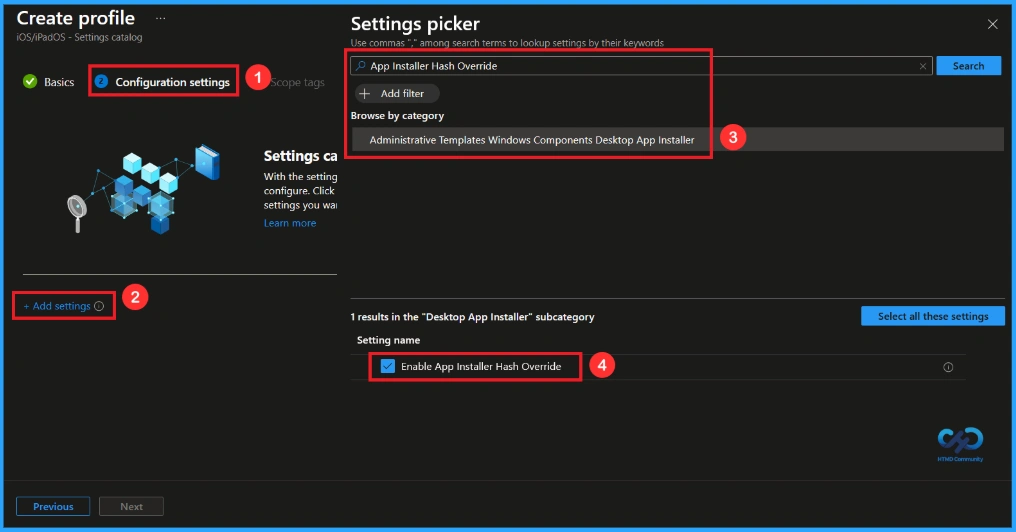
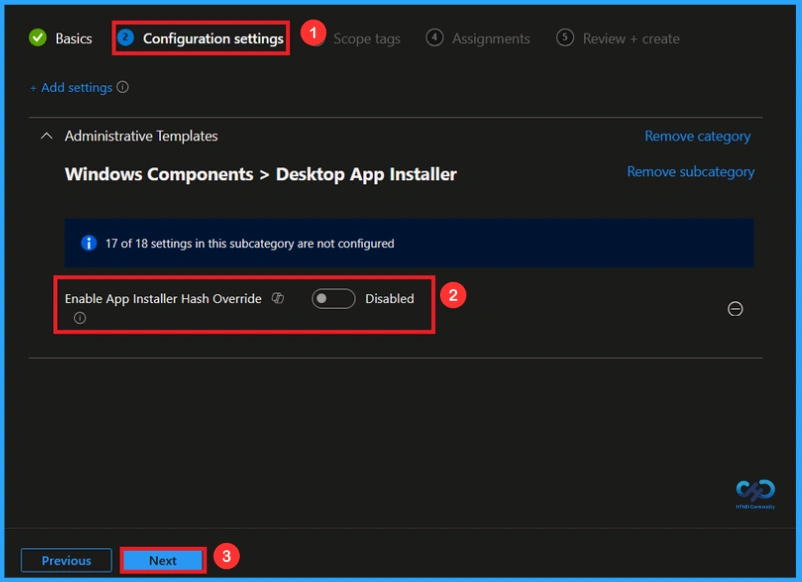
Once you select App installer hash override and close the Settings selector. You will see it in Configuration page. Here we have only two settings: Enable or Disable. By default, it will be set to Disabled. Click Next to continue.
Enable Application Installer Hash Replacement Policy
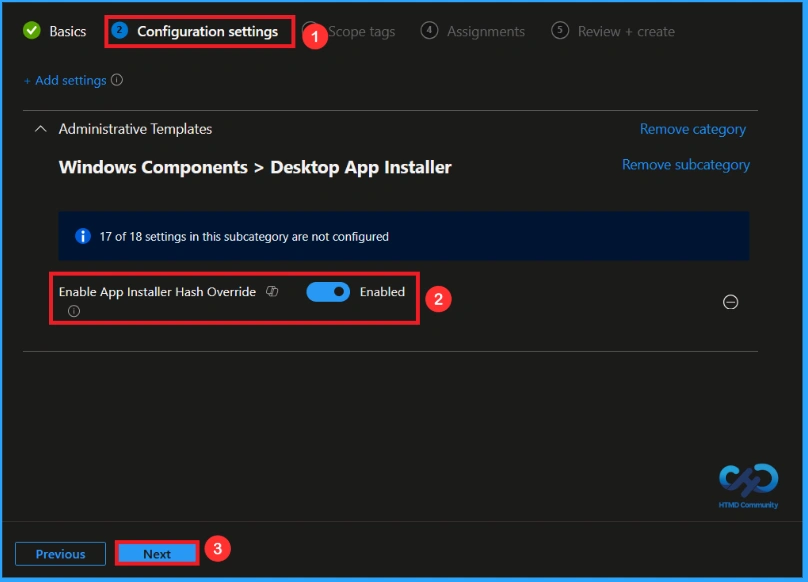
If we Possible or configure this policy, you can enable the application installer hash replacement policy with toggle the switch from left to right. Then, you can click Next button to continue.
Scope Tag
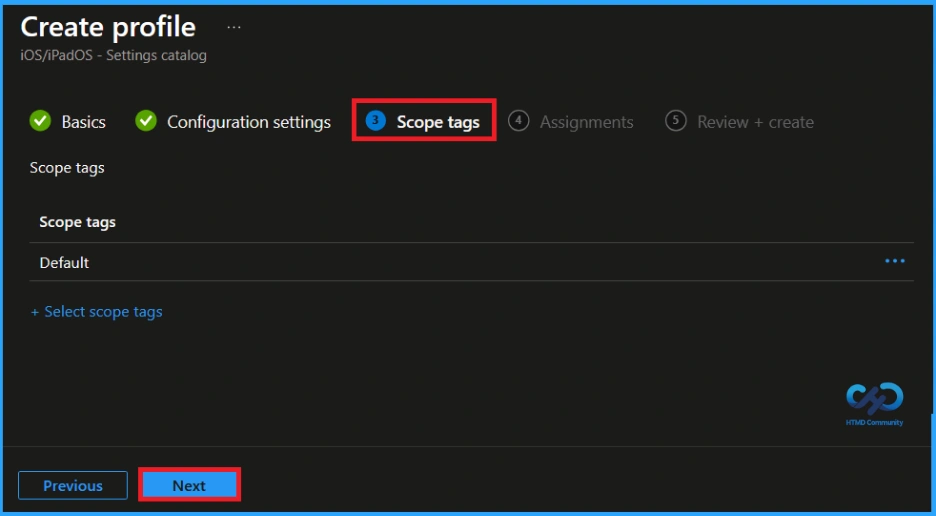
In Intune, Scope Tag used to control who can see and change policies. The coverage tag is not mandatory, so you can skip this part. It serves as a tool for organization and access management, but assigning it is optional. Click Next if it is not necessary for your setup.
Task
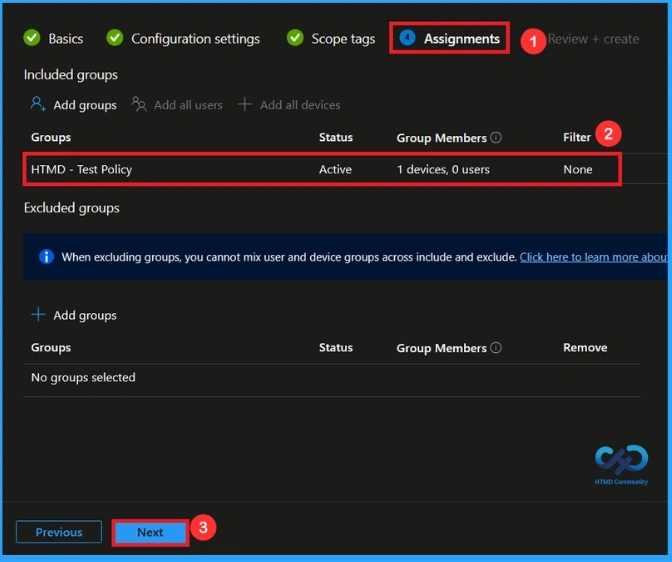
In Tasks TabYou select the users or devices to receive the policy by clicking Add Group under Include Groups, select the groups you want to target (HTML – Polii Test) then click Next to continue.
Final Step
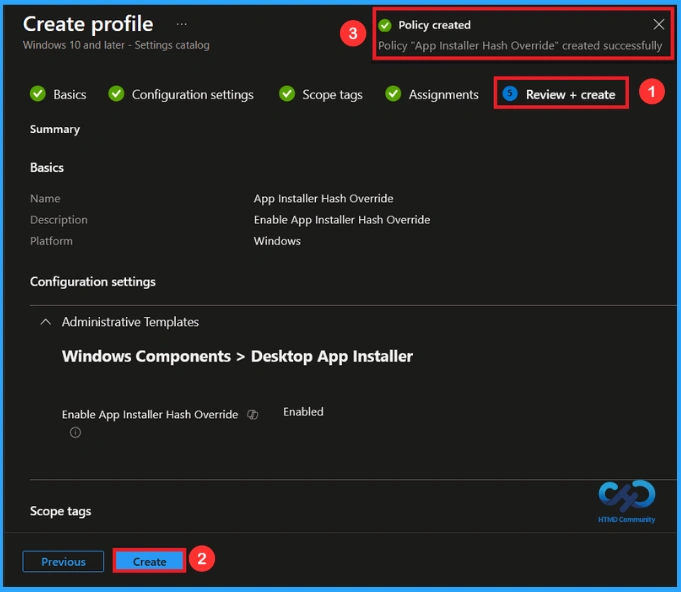
In the final Review + Create step, we see a summary of all the settings configured for the new profile; after reviewing the details and making the necessary changes by clicking Previously. We clicked Create to finish, and a notification confirmed that “App Installer Hash Replacement Created Successfully”.
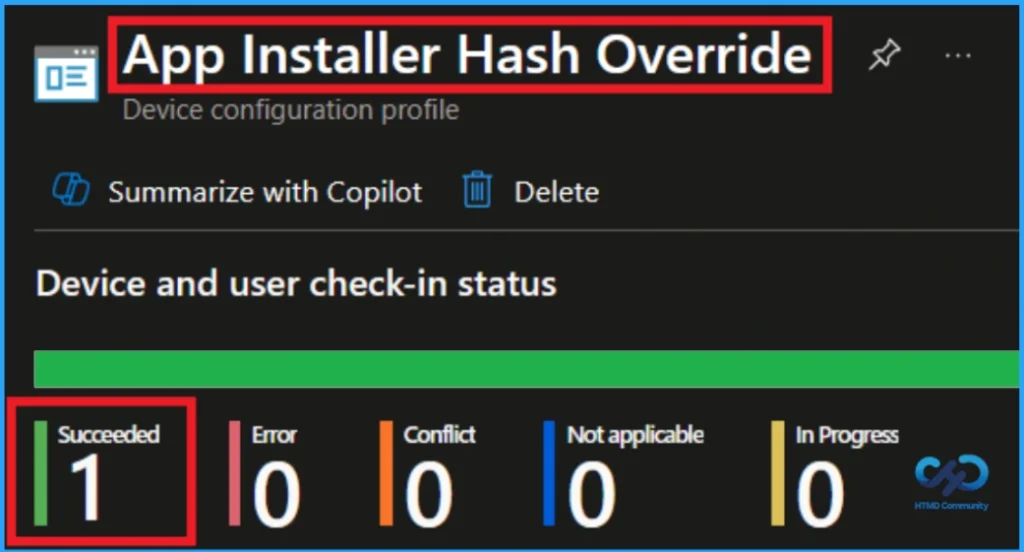
Device and User Check-in Status
To view the policy status, go to Device > Configuration in the Intune portal, select the policy (app installer hash replacement), and check whether the status is displayed Success (1). Use manual synchronization in the Company Portal to speed up the process.
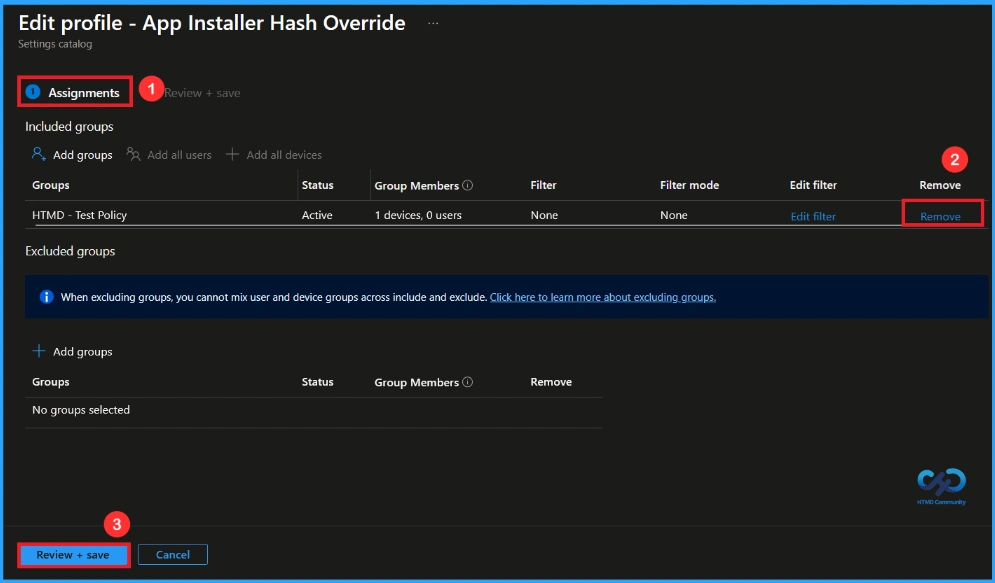
How to Remove an Assigned Group from this Policy
After creating a policy, if you want to delete a specific group that you selected earlier, you can do it easily. First, go to Device > Configuration policies. In the Configuration policies section, search for and select it policy. In the Tasks section you will find Edit choice and click on. Then, click Delete choice.
For more information, you can refer to our previous post – Learn How to Delete or Unassign Apps from Intune using Step by Step Guide.
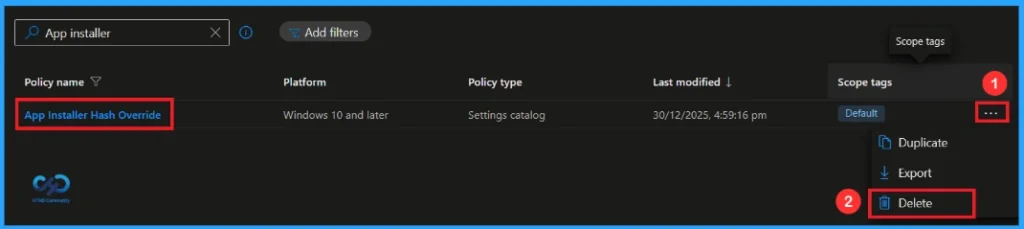
How to Remove this Policy from Intune
If you want delete this policy for any reason, you can do it easily. First, look for for this policy Name in configuration section. When you find the policy name, you will see a 3 points menu next to it. Click on the 3 dots, then click Delete knob.
For more information, you can refer to our previous post – How to Remove Allow Clipboard History Policy in Intune Step by Step Guide.
Need More Help or Have a Technical Question?
Join LinkedIn Page And Telegram Group to get step by step guides and latest news updates. Join us Meeting Page to participate in User group meetings. Also, Join WhatsApp Community to get the latest news about Microsoft Technologies. We were there reddit as well.
Author
Anoop C Nair has been a Microsoft MVP from 2015 onwards for 10 years in a row! He is a Workplace Solutions Architect with over 22+ years of experience in the Workplace technology space. He is also a Blogger, Speaker, and Local User Group Community leader. The main focus is on Device Management technologies such as SCCM and Intune. He writes about technologies like Intune, SCCM, Windows, Cloud PC, Windows, Entra, Microsoft Security, Career, etc.
News
Berita Teknologi
Berita Olahraga
Sports news
sports
Motivation
football prediction
technology
Berita Technologi
Berita Terkini
Tempat Wisata
News Flash
Football
Gaming
Game News
Gamers
Jasa Artikel
Jasa Backlink
Agen234
Agen234
Agen234
Resep
Cek Ongkir Cargo
Download Film