Key Takeaways
- Focus on improving the overall Windows device experience
- Narrator Update-Works with Copilot to describe images and improve accessibility
- Smart App Control can be turned on or off easily and helps block harmful apps
- 2 Zero-Day vulnerabilities identified in the April 2026 Patch Tuesday release
- CVE-2026-32201 (SharePoint Server – Spoofing)
- CVE-2026-33825 (Microsoft Defender – Elevation of Privilege)
Windows 11 KB5083769 KB5082052 April 2026 Patch and 2 Zero Day Vulnerabilities and 167 Flaws! In the April 2026 Patch Tuesday release, Microsoft introduced several important updates to improve the overall experience of Windows devices. These updates mainly focus on enhancing security, improving stability, and ensuring better performance in day-to-day use. The release also includes fixes for common issues, improvements in reliability across different features, and optimisations that help devices run more smoothly.
Table of Content
2 Zero Day Vulnerabilities and 167 Flaws
The April 2026 Patch Tuesday release includes two zero-day vulnerabilities that require immediate attention. The first, CVE-2026-32201, is a Microsoft SharePoint Server spoofing vulnerability that has already been actively exploited in the wild, even though it was not publicly disclosed before the patch. This makes it particularly critical for organizations using SharePoint to apply updates without delay.
The second, CVE-2026-33825, is an elevation of privilege vulnerability in Microsoft Defender. It was publicly disclosed prior to the release and is considered more likely to be exploited, although no active exploitation has been detected so far. Together, these vulnerabilities highlight the importance of prioritizing patching efforts to protect against both ongoing and potential attacks.
- 93 Elevation of Privilege Vulnerabilities
- 20 Remote Code Execution Vulnerabilities
- 10 Denial of Service Vulnerabilities
- 9 Spoofing Vulnerabilities
- 13 Security Feature Bypass Vulnerabilities
- 21 Information Disclosure Vulnerabilities
| Release Date | CVE Number | CVE Title | Publicly disclosed | Exploitability assessment | Exploited |
|---|---|---|---|---|---|
| Apr 14, 2026 | CVE-2026-32201 | Microsoft SharePoint Server Spoofing Vulnerability | No | Exploitation Detected | Yes |
| Apr 14, 2026 | CVE-2026-33825 | Microsoft Defender Elevation of Privilege Vulnerabilit | Yes | Exploitation More Likely | No |
Windows 11 KB5083769 KB5082052 April 2026 Patch and 2 Zero Day Vulnerabilities and 167 Flaws
In the April Patch update, Microsoft introduced improvements to Account Settings to enhance user experience. Microsoft 365 Family users can now easily upgrade their subscription directly from the Settings app, making plan management more convenient. Additionally, the dialog boxes under Accounts > Other users have been updated with a modern design and now support dark mode, providing a more consistent and visually improved interface.

| Windows 11 26H1 | Windows 11 25H2 and 24H2 | Windows 11 23H2 |
|---|---|---|
| KB5083768 | KB5083769 | KB5082052 |
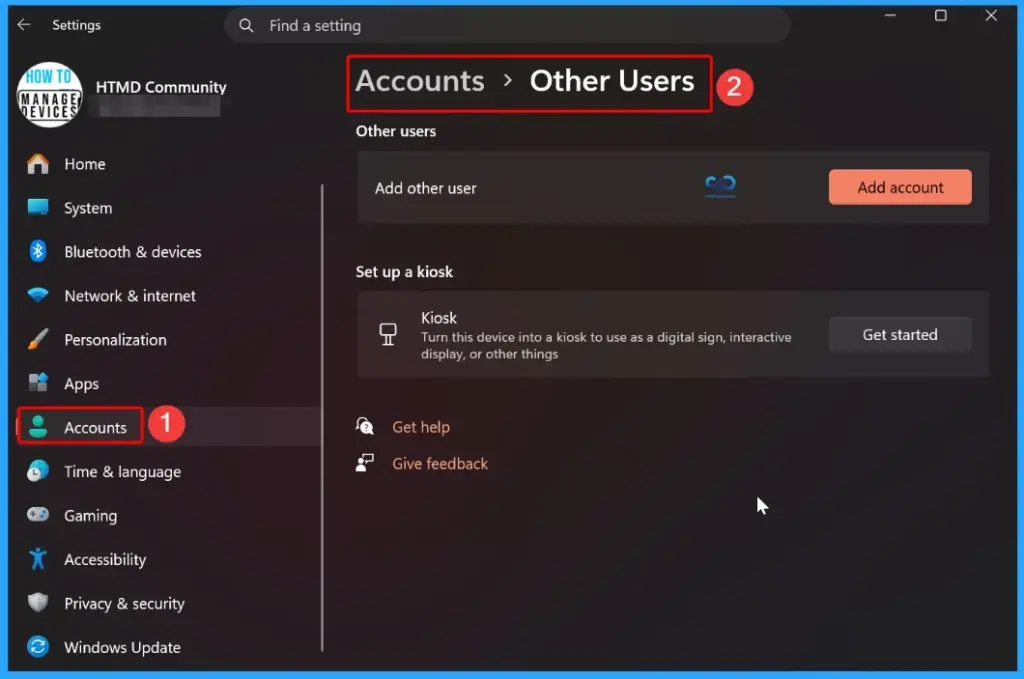
Updated Version of Windows 11 after Installing KB5083769 KB5082052 April 2025 Patch
The April patch update introduces enhancements to Quick Machine Recovery (QMR), improving system resilience and recovery options for users. QMR is now automatically enabled on Windows Professional devices that are not domain-joined and not enrolled in enterprise management, bringing them in line with the recovery experience available on Windows Home devices.
- Windows 11 version 25h2 and 24h2 – April 14, 2026—KB5083769 (OS Builds 26200.8246 and 26100.8246)
- More Details on Windows 11 version Numbers: Windows 11 Version Numbers Build Numbers Major Minor Build Rev.
- Windows 11 Version 23h2 – April 14, 2026—KB5082052 (OS Build 22631.6936)
- Windows 11 Version 26h1 – April 14, 2026—KB5083768 (OS Build 28000.1836)
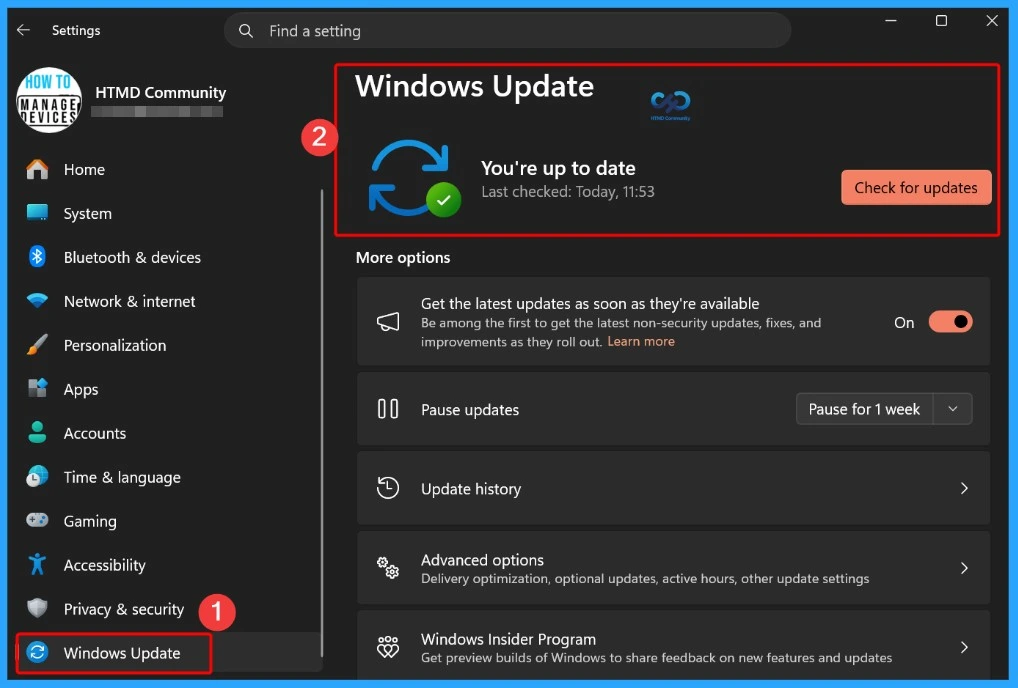
Windows 11 Features and New Improvements – KB5083769 KB5082052
The April update introduces a new built-in network speed test feature, making it easier to check connectivity directly from the taskbar. Users can launch the speed test from the Wi-Fi or Cellular Quick Settings, or by right-clicking the network icon in the system tray. The test opens in the default browser and supports measuring Ethernet, Wi-Fi, and cellular connections.
| New Improvements | Details |
|---|---|
| Emoji 16.0 Release | Introduces a small, thoughtfully curated set of new emojis with one from each major category, focusing on meaningful design, timeless symbolism, and practical everyday use, now available in the emoji panel for enhanced user expression |
| Backup & Restore Enhancement | First sign-in restore is now available, automatically restoring user settings and apps on supported devices, helping ensure a smooth and consistent setup during refresh, upgrade, or migration |
| Quick Machine Recovery (QMR) | Automatically enabled on Windows Pro devices that are not domain-joined or enterprise-managed; provides recovery features similar to Home users, while managed devices require manual enablement |
| QMR Scan & Recovery | Runs a one-time scan when enabled; if no fix is found, it guides users to the best recovery options to restore the PC |
| Network Speed Test | Built-in speed test available from the taskbar; opens in the browser to check Ethernet, Wi-Fi, and cellular performance |
| Taskbar Improvement | When taskbar is uncombined, only extra windows move to overflow instead of all, reducing unused space |
| Account Menu Update | New option in Start menu to access and manage Microsoft account benefits easily |
| Camera Settings | Control pan and tilt for supported cameras from Settings under Bluetooth & devices > Cameras |
| Built-in Sysmon | Native System Monitor added to capture system events for threat detection and logging |
| Sysmon Status | Disabled by default and must be enabled before use |
| Widgets Update | Widget Settings now open as a full-page experience instead of a dialog |
| Desktop Background | You can now set WebP (.webp) images as desktop background from Settings or File Explorer |
| Search Result Groups | Group headers now show result counts and allow viewing all results for a specific group |
| Search Preview | Hover over results to preview content without opening it |
| Search Icon Update | Task Manager now shows a magnifying glass icon for the Search process |
| Storage UI Update | Some dialogs now have a more modern design |
| Temp Files Scan | Improved performance when scanning temporary files |
| RSAT Support | RSAT tools now supported on Windows 11 Arm64 devices and can be installed as optional features |
| Windows Update | Improved responsiveness of the settings page |
| Login & Lock Screen | Improved sign-in screen reliability |
| Nearby Sharing | Better reliability when sending large files |
| Projecting | Improved reliability of project menu (Win + P) |
| Printing | Enhanced performance of printing service for smoother and faster printing |
| Open New Window | Shift + click or middle mouse button now reliably opens a new File Explorer window |
| Extract Option | “Extract all” option now available in the command bar for non-ZIP archives |
| Network Devices | Improved reliability in displaying devices on the Network page |
| Display Reliability | Improved reliability when the PC wakes from sleep |
| Resume Performance | Faster resume from sleep, especially under heavy load |
| Visual Consistency | Improved UI consistency across taskbar, security dialogs, and print dialog |
| Narrator Update | Provides image descriptions using Copilot; supports shortcuts to describe images or the screen, with on-device descriptions on Copilot+ PCs |
| Smart App Control (SAC) | Can now be turned on/off without a clean install; helps block untrusted or harmful apps from Windows Security settings |
| Microsoft 365 Upgrade | Family users can upgrade plans directly from Settings > Accounts |
| Accounts UI Update | Improved dialog design with modern look and dark mode support; visibility depends on the domain/work account |
| Pen Settings | New option to map pen tail button, same as Copilot key |
| Settings – About Page Update | Improved layout with clearer device info and easier navigation |
| Settings – Device Info Card | Simplified specs display on Settings Home for better readability |
| Settings Performance | Improved reliability and performance when opening Settings Home |
| Settings – Update Reliability | Improved reliability when downloading updates from advanced settings |
| File Explorer – File Unblock | Improved ability to unblock downloaded files for preview |
| File Explorer – Voice Typing | Use Windows + H to rename files using voice typing |
| File Explorer – Permission Sorting | Can now sort permission entries by Principal in Advanced Security Settings |
| Display – High Refresh Rate | Monitors can now report refresh rates above 1000 Hz |
| Display – USB4 Power Saving | USB controller uses lower power during sleep with USB4 monitors |
| Display – Auto Rotation | Improved reliability after resuming from sleep |
| Display – HDR Support | Better HDR reliability for certain displays |
| Display – Monitor Accuracy | More accurate monitor size reporting via WMI APIs |
| Printing | Updated baseline support for printer connections (Windows 10 1607 & Server 2016) |
| Safe Mode | Improved reliability of loading taskbar components |
| Voice Access | Better number detection and input in English |
| Start Menu | Improved reliability when applying the layout via Group Policy |
| Remote Desktop | PowerShell command now supports DisableSeamlessLanguageBar |
| Audio | Improved handling of short MIDI messages |
| System File Checker | Removed unnecessary error message in sfc /scannow |
| Windows Hello | Improved fingerprint reliability on some devices |
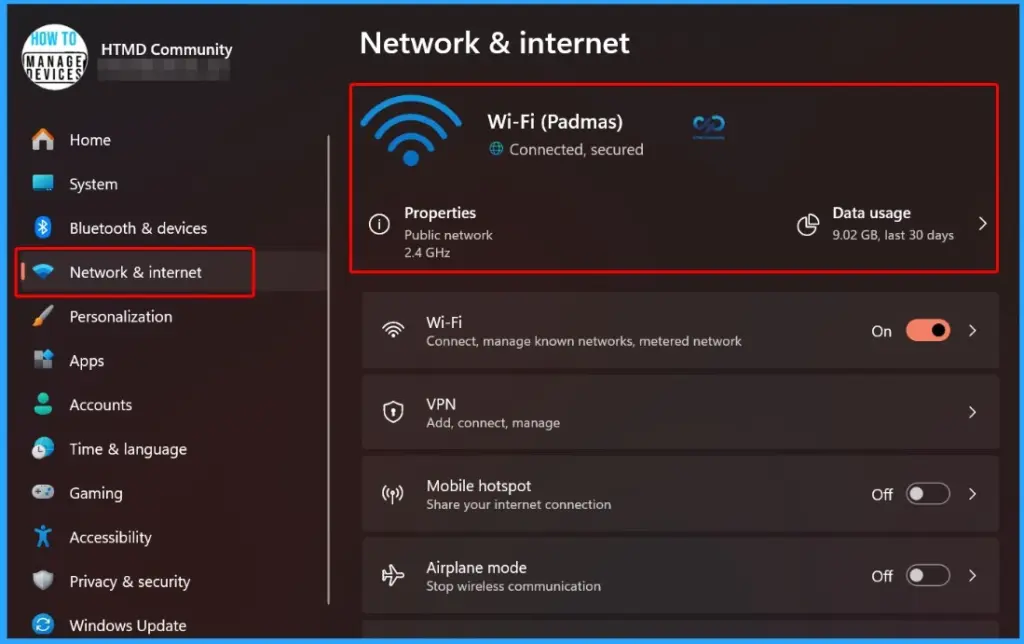
Intune Windows 11 KB5083769 KB5082052 Deployment
For the April 2026 Patch Tuesday updates, you can use Microsoft Intune to deploy the Windows 11 cumulative update across your devices. There is no need to create a new policy for every update, as Intune handles everything through quality update settings.
If some devices haven’t received the April 2026 update yet, you can speed up the process by creating a Windows 11 quality update profile in the Intune admin center. Go to Devices > Windows 11 Quality Updates, create a profile, and configure basic options like name, description, enabling faster installation for older devices, and setting restart enforcement. This ensures the April 2026 update installs faster and keeps all your managed devices up to date consistently.
Read More – Software Update Patching Options with Intune Setup Guide
More Details on Zero Day Out Of Band Patch Deployment Using Intune MEM Expedite Best Option and Intune Reporting Issue: Expedite Windows Security Patch Deployment.
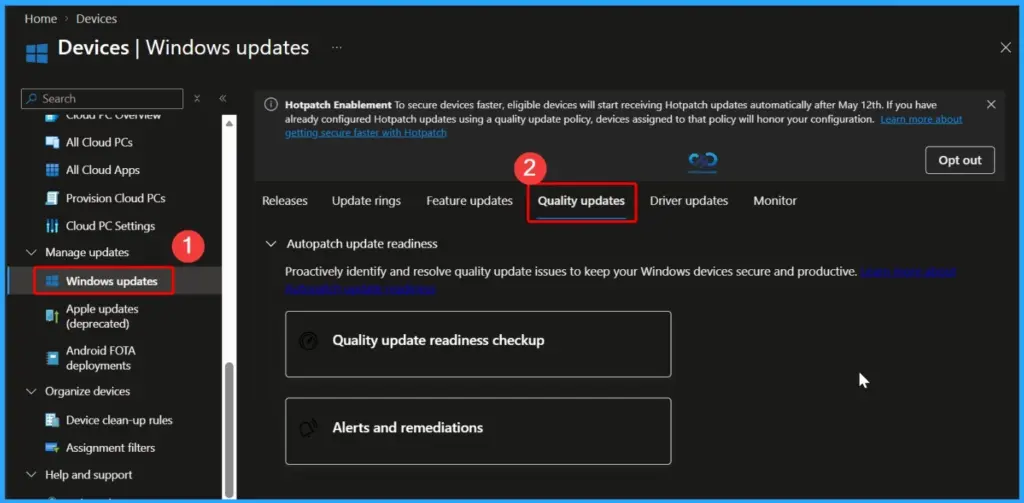
SCCM Windows 11 KB5083769 KB5082052 Deployment
You can deploy the Windows 11 April 2026 Cumulative Update using tools like Microsoft SCCM, Windows Server Update Services, or Microsoft Intune.
In SCCM, a simple way to find and deploy the update is from the admin console. Go to Software Library > Overview > Software Updates > All Software Updates, then right-click and start a WSUS Sync.
Once the sync is finished, search using the KB number for the April 2026 update or keywords like “04-2026 Cumulative Update for Windows 11.” After finding it, you can deploy the update as part of your regular monthly patching process. This makes it easy to keep all your devices updated in a consistent way.
Direct Download Links of Windows 11 KB5083769 KB5082052
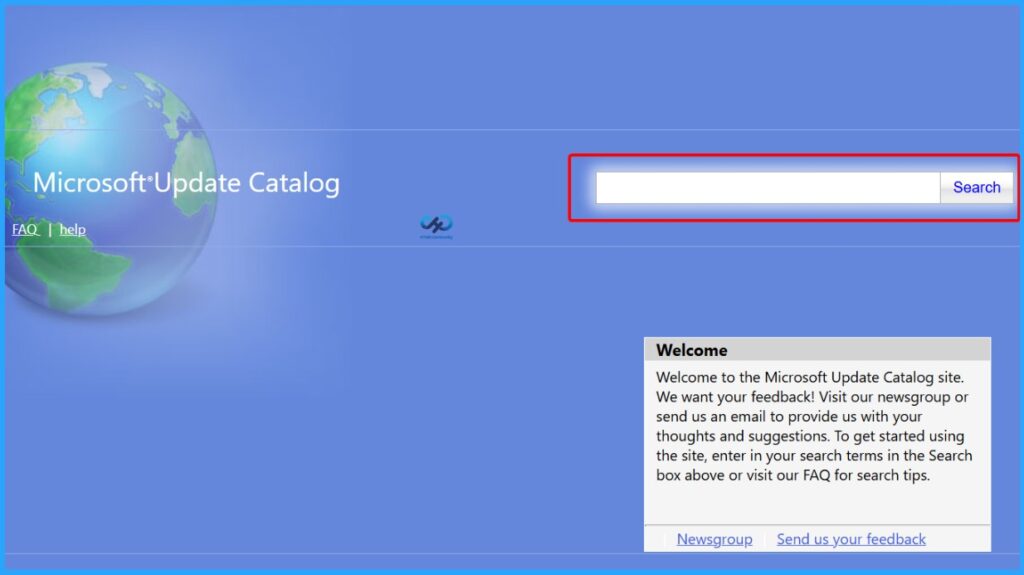
You can manually download the Windows 11 April 2026 Cumulative Update from the Microsoft Update Catalog. This site gives you direct download links for the update and related fixes, so you can get the standalone installer easily.
Just open the Microsoft Update Catalog in your browser, search for the April 2026 cumulative update for Windows 11, and download the required file. This method is useful when you want to install the update manually or on devices that are not managed by tools like Intune or SCCM.
| Cumulative Update for Windows 11 | Products | Size | Direct Download |
|---|---|---|---|
| 2026-04 Cumulative Update for Windows 11, Version 26H1 for x64-based Systems (KB5083768) (28000.1836) | Windows 11 26H1 | 3078.4 MB | Download |
| 2026-04 Cumulative Update for Windows 11, version 25H2 for x64-based Systems (KB5083769) (26200.8246) | Windows 11 25H2 | 5116.0 MB | Download |
| 2026-04 Cumulative Update for Windows 11 Version 24H2 for x64-based Systems (KB5083769) (26100.8246) | Windows 11 24H2 | 5116.0 MB | Download |
| 2026-04 Cumulative Update for Windows 11 Version 23H2 for x64-based Systems (KB5082052) | Windows 11 23H2 | 1022.0 MB | Download |
Need Further Assistance or Have Technical Questions?
Join the LinkedIn Page and Telegram group to get the latest step-by-step guides and news updates. Join our Meetup Page to participate in User group meetings. Also, join the WhatsApp Community and the Whatsapp channel to get the latest news on Microsoft Technologies. We are there on Reddit as well.
Resources
April 14, 2026—KB5083768 (OS Build 28000.1836) – Microsoft Support
Author
Anoop C Nair has been Microsoft MVP for 10 consecutive years from 2015 onwards. He is a Workplace Solution Architect with more than 22+ years of experience in Workplace technologies. He is a Blogger, Speaker, and Local User Group Community leader. His primary focus is on Device Management technologies like SCCM and Intune. He writes about technologies like Intune, SCCM, Windows, Cloud PC, Windows, Entra, Microsoft Security, Career, etc.
PakarPBN
A Private Blog Network (PBN) is a collection of websites that are controlled by a single individual or organization and used primarily to build backlinks to a “money site” in order to influence its ranking in search engines such as Google. The core idea behind a PBN is based on the importance of backlinks in Google’s ranking algorithm. Since Google views backlinks as signals of authority and trust, some website owners attempt to artificially create these signals through a controlled network of sites.
In a typical PBN setup, the owner acquires expired or aged domains that already have existing authority, backlinks, and history. These domains are rebuilt with new content and hosted separately, often using different IP addresses, hosting providers, themes, and ownership details to make them appear unrelated. Within the content published on these sites, links are strategically placed that point to the main website the owner wants to rank higher. By doing this, the owner attempts to pass link equity (also known as “link juice”) from the PBN sites to the target website.
The purpose of a PBN is to give the impression that the target website is naturally earning links from multiple independent sources. If done effectively, this can temporarily improve keyword rankings, increase organic visibility, and drive more traffic from search results.


