Important Points
- Microsoft Goes Global Secure Access now BYOD supports devices using Entra Enrolled Devices.
- Personal devices are no longer necessary full management or registration to access job applications.
- Access protected using identity-based security and Conditional Access.
- Works across Windows, AndroidAnd macOS platforms.
Microsoft has announced a new update for Microsoft Sign in Global Secure Access (GSA) makes it easy for organizations to provide support Bring Your Own Device (BYOD) scenario. With this renewEmployees can securely access company resources using their personal devices without requiring full device management.
List of contents
Entra Global Secure Access Microsoft Adds BYOD Support Using Entra Registered Devices
This new capability is made possible through Microsoft Sign in Registered Devices. This device is linked to the user’s device Login ID but is not fully registered or controlled by the organization. This allows the company to balance strong security with user privacy, especially in hybrid and remote work environments.
BYOD with Global Secure Access
BYOD access is enabled via Microsoft Sign in device registration. Device registration creates a trusted identity for the device but does not provide one organization complete control over it. This allows secure access while keeping devices private not managed.
See More: What is Entra Global Secure Access?
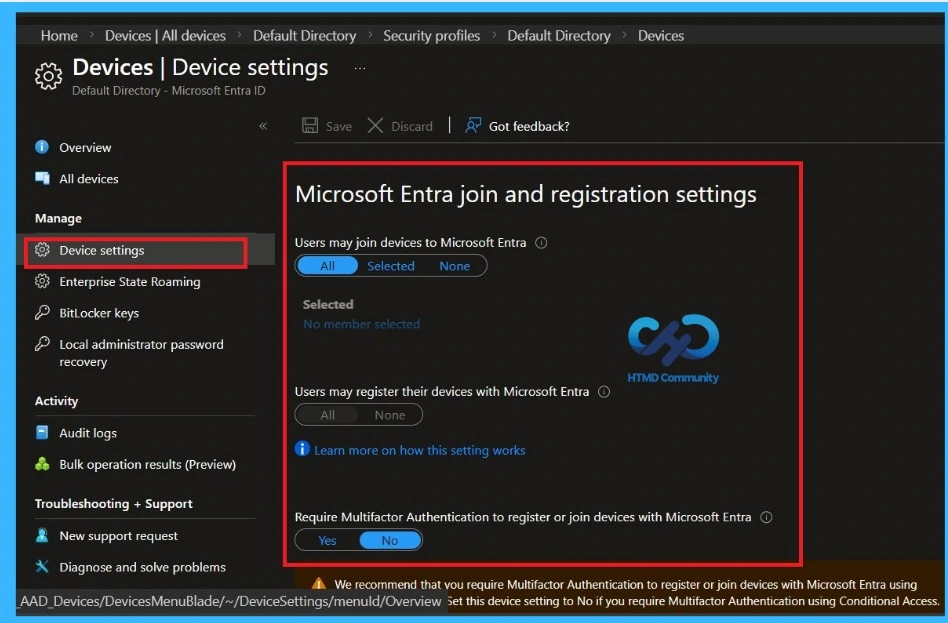
Device Enrollment Settings in Microsoft Entra
Administrators control whether users can register or join devices. For BYOD scenario, this page is important because the device registration Personal devices must be allowed to access company resources via Global Secure Access.
How it Works in Windows
On Windows, Globally Secure Access supports Microsoft Entra registered devices that are not joined to a domain, but only Private Access traffic is allowed, so administrators must enable it Private Access profile. If the device is not registered or joined, the device will automatically register to a tenant when first signing in, and if there are multiple registrations without joining, the user must select a tenant when signing in.
- For devices joining Entra or hybrid join, clients are always connected to the joined tenant, and tenant switching is not supported.
- For unjoined devices, multiple registrations are allowed, there is no switching between registered tenants at this time. Allows users to switch to a resource tenant using B2B Collaboration.
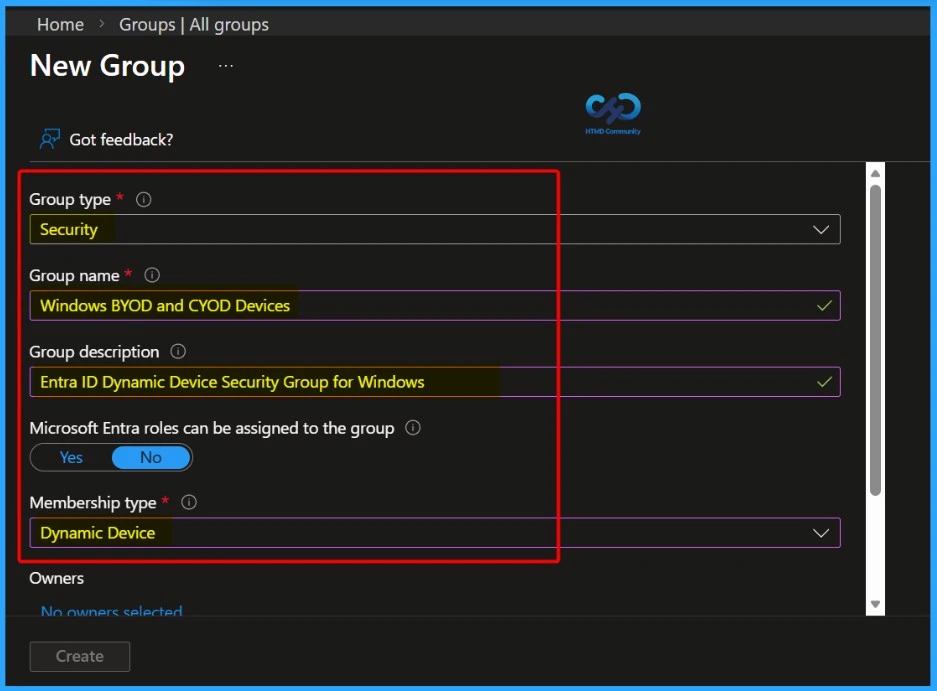
- The screenshot illustrates New Group settings in Microsoft Entra (Azure AD), where administrators create Security group named Windows BYOD and CYOD devices.
See More: Create an Entra ID Dynamic Device Security Group for Windows BYOD and CYOD Devices using Microsoft Intune
BYOD on Android Devices
On Android, BYOD access is available without device registration using Microsoft Entra device registration. Users can list the device they use Microsoft Authenticator or the Intune Company Portal app.
After registration, the user must install Microsoft Defender application and log in. All devices VPN profile is created, but Global Secure Access connection is turned off by default. Users must enable it manually to send Private Access traffic.
- This applies to devices registered with Company Portal And not managed devices with the Company portal and Authenticator app.
macOS BYOD support
On macOS BYOD support also available without device registration. Users register their devices using the Enterprise Portal, which creates a Microsoft Entra registered device identity. Once registered, administrators can activate traffic required profile to allow secure access. This applies to registered and unmanaged macOS devices.
- Applies to registered and unmanaged devices with Company Portal.
| Tenant Selection and Transition | Connection goals |
|---|---|
| window | Always connected to join the tenant. For tenants who have not yet joined, users select the tenant when they first log in; stay connected with that tenant |
| macOS | User chooses a tenant when you first log in; stay connected with that tenant |
| Android | The user selects the tenant initially enter; stay connected with that tenant |
Need More Help or Have a Technical Question?
Join LinkedIn Page AndTelegram Group to get step by step guides and news updates. Join usMeeting Pageto participate in User group meetings. Also, JoinWhatsApp CommunityAndWhatsApp Channelto get the latest news about Microsoft Technologies. We were thereredditas well.
Author
Anoop C Nairhas been a Microsoft MVP for 10 consecutive years from 2015 onwards. He is a Workplace Solutions Architect with over 22+ years of experience in the Workplace technology space. He is a leader of the Community of Bloggers, Speakers, and Local User Groups. The main focus is on Device Management technologies such as SCCM and Intune. He writes about technologies like Intune, SCCM, Windows, Cloud PC, Windows, Entra, Microsoft Security, Career, etc.
News
Berita Teknologi
Berita Olahraga
Sports news
sports
Motivation
football prediction
technology
Berita Technologi
Berita Terkini
Tempat Wisata
News Flash
Football
Gaming
Game News
Gamers
Jasa Artikel
Jasa Backlink
Agen234
Agen234
Agen234
Resep
Cek Ongkir Cargo
Download Film
Originally posted 2026-02-15 10:37:49.