Important Points
- this policy increases device security by blocking Siri use when the device is locked.
- Prevent Siri from responding voice command on the lock screen.
- Can be managed and enforced centrally using Microsoft Intune.
- Reduces the risk of unauthorized access to device information.
Hey, let’s discuss about How to Disable Siri When Device is Locked on iOS Using Intune. This policy controls whether Siri can be used when the iOS device is locked. If the policy is set to false, Siri will not work on the lock screen. This helps stop anyone from using voice command without unlocking the device.
When Siri is disabled when the device is locked, the user must unlock it iPhone or iPad to use Siri. It protects personal data such as messagescontacts, and calendar details from being accessed by others.
This restriction only works if the device has a set passcode. If there is no passcode on the device, the policy is ignored, and Siri it might still work on lock screen. So, setting a strong passcode very important.
This policy is supported on running devices iOS 5.1 and later. This means it works on almost all modern iPhones and iPads used in organizations Today. This setting is also available for user registration devices. This helps organization improve security while still allowing users to securely manage their personal devices according to company rules.
How to Disable Siri When Device is Locked on iOS using Intune
Before enabling this policySiri can be used while the device is locked, meaning anyone nearby can ask Siri to use it make calls, read messages, or access information without unlocking the device. After activating policy, Siri is blocked when the device is locked, and users must unlock the iPhone or iPad to use Siri, and that is very important improve security and prevent unauthorized access to personal or company data.
How it Helps Supervised Devices
This policy helps supervised device by preventing Siri from functioning when the device is locked, thus stopping unauthorized users access company information via voice command. Because supervised devices are fully managed by the organization, these settings are strictly enforced and cannot be bypassed by users. This reducing the risk of data exposure if the device is lost or stolen and improve overall security for the company’s iOS devices.
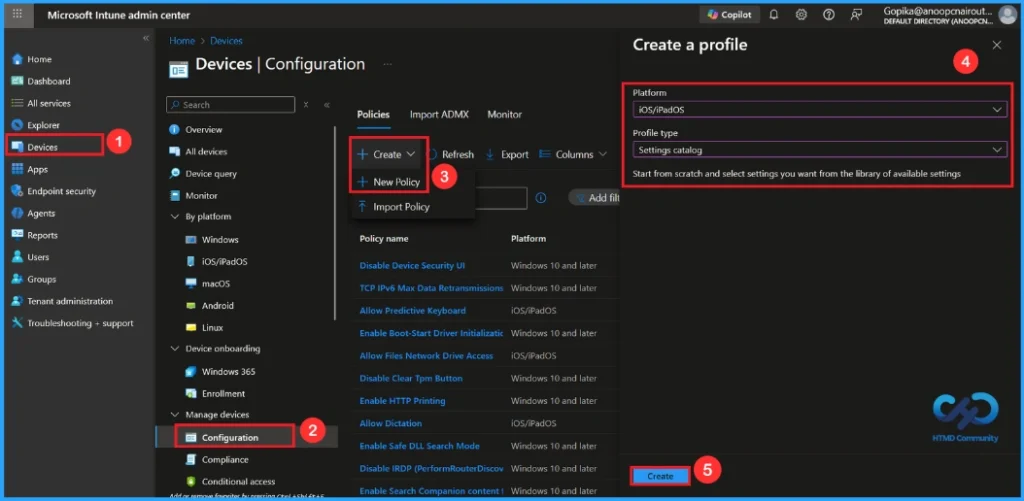
Create a Profile
Go in first Microsoft Intune admin center. Go to Devices and select it Configuration profile. Then click Create a profile to open the profile creation window. Choose platforms And profile type. After that, click Make to start configuring your new policy.
| Ladder | Details |
|---|---|
| Platforms | iOS/iPadOS |
| Profile Type | Settings Catalog |
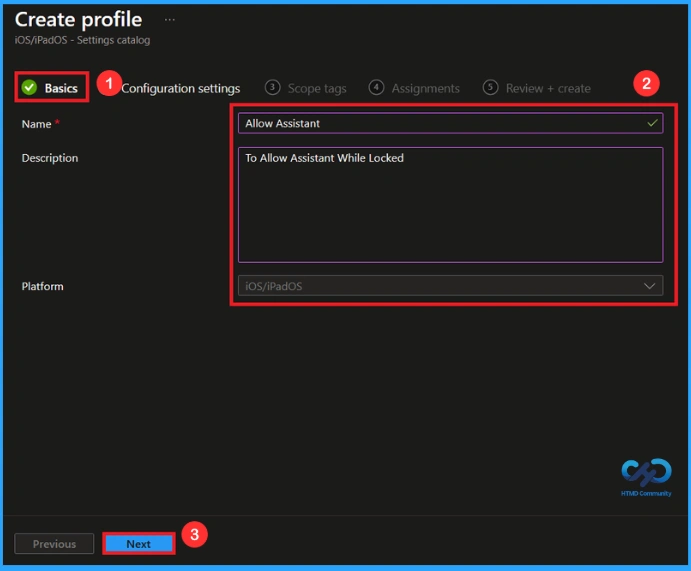
First Step
To start configuring policies in Intune, start with Basics step. Here, we can add Name policy and provide a brief explanation information.
- Policy Name: Allow Assistant
- Information: To Allow Assistant When Locked
- Platforms: iOS/iPadOS
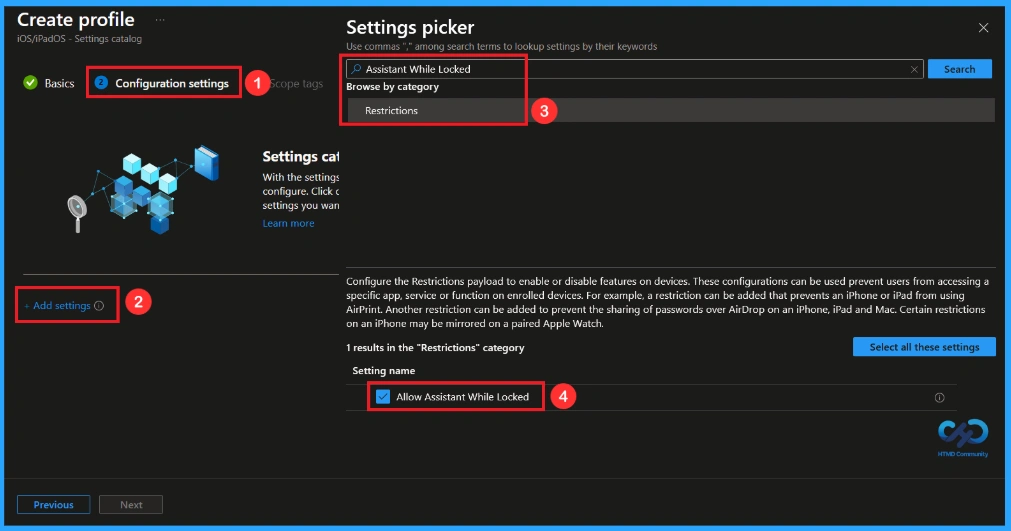
Configuration Settings
In Configuration settings tab, click Add settings button to open the Settings selector. Type Assistant when locked or search for categories Restrictions in the Search bar. Then Select Allow Assistant when locked.
Once you select this policy and close the Settings selector. You will see it in Configuration page. Here we have only two settings True or false. By default, it will be set to True (Enable). If you want to allow this setting, click it Next knob.
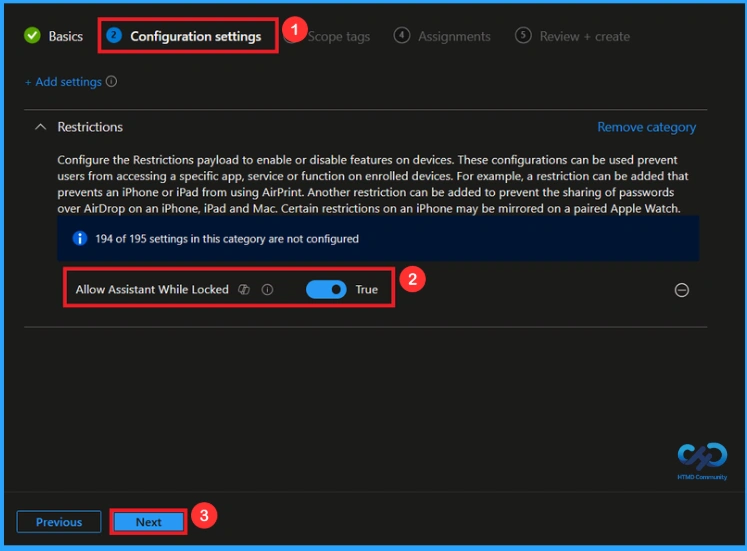
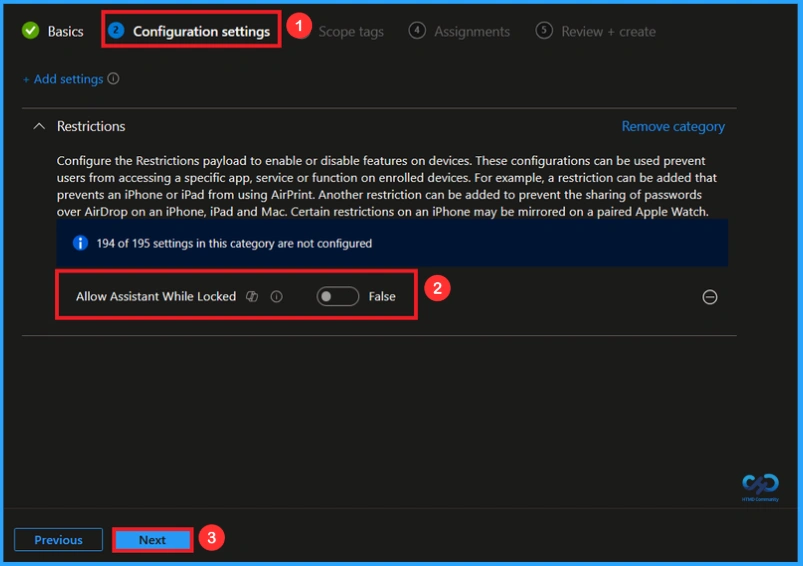
Disable Assistant Policy On Lock
If we blocked or don’t configure this policy, you can disable the assistant while the policy is locked toggle the switch from right to left. Then you can click Next button to continue.
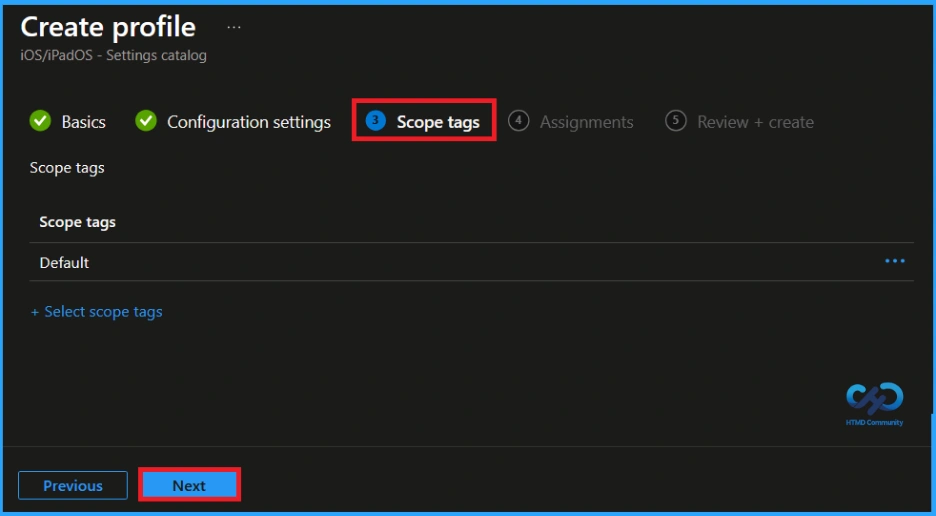
Scope Tag
In Intune, Scope Tag used to control who can see and change policies. The coverage tag is not mandatory, so you can skip this part. It serves as a tool for organization and access management, but assigning it is optional. Click Next if it is not necessary for your setup.
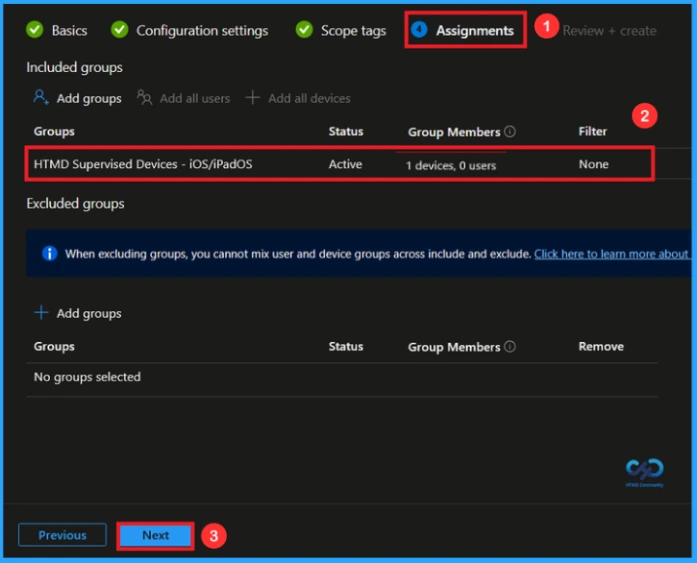
Task
In Tasks TabYou select the users or devices to receive the policy by clicking Add Group under Include Groups, select the groups you want to target (for example HTMD Monitored Device – iOS/iPadOs) then click Next to continue.
Final Step
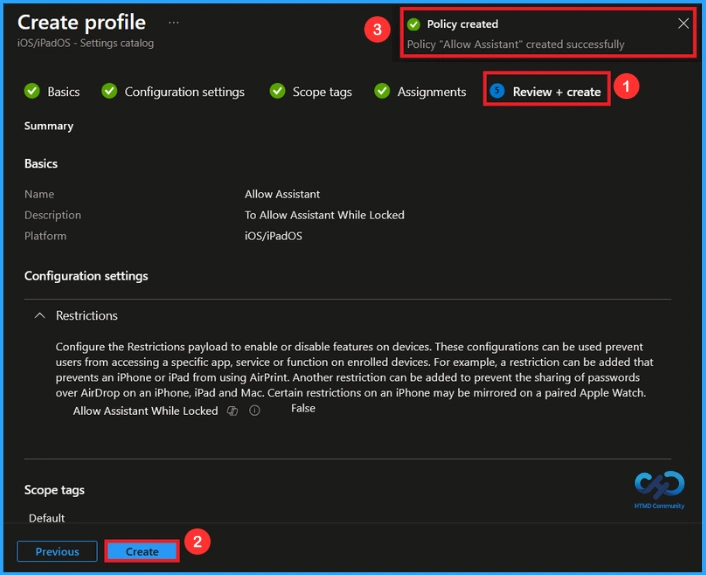
In the final Review + Create step, we see a summary of all the settings configured for the new profile; after reviewing the details and making the necessary changes by clicking Previously. We click Make to complete, and a notification confirms that “Allow Assistant to be created successfully”.
Monitoring Status
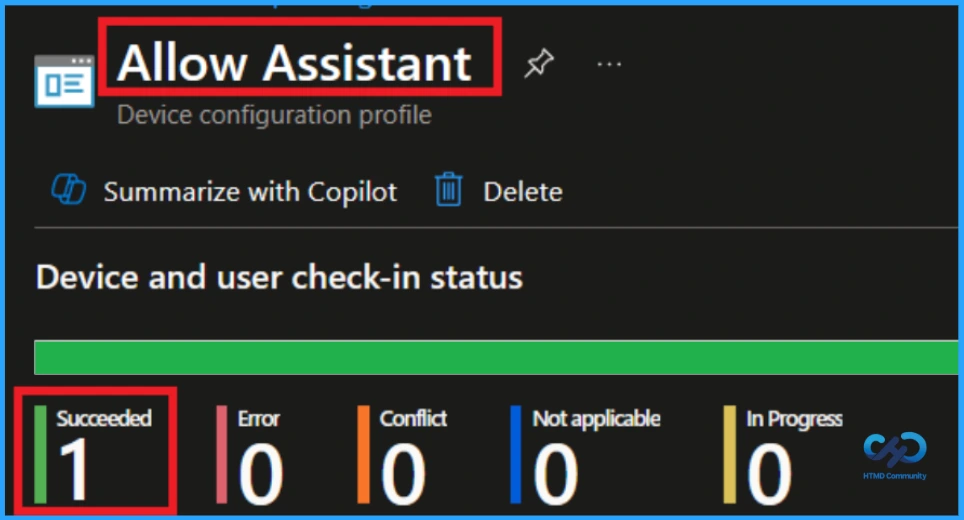
To view the policy status, go to Device > Configuration in the Intune portal, select the policy (Allow Assistant), and check whether the status is displayed Success (1). Use manual synchronization in the Company Portal to speed up the process.
How to Check End User Devices
To check it on a end user iOS deviceslock your iPhone or iPad and try activating Siri by saying Hey Siri or by pressing and holding the Side/Home button. If this policy is in place, Siri will not respond until the device is unlocked with a passcode, Face ID, or Touch ID. You can also go to Settings > Siri & Search and confirm that Siri options are limited on the lock screen.
Remove Assigned Groups from this Policy
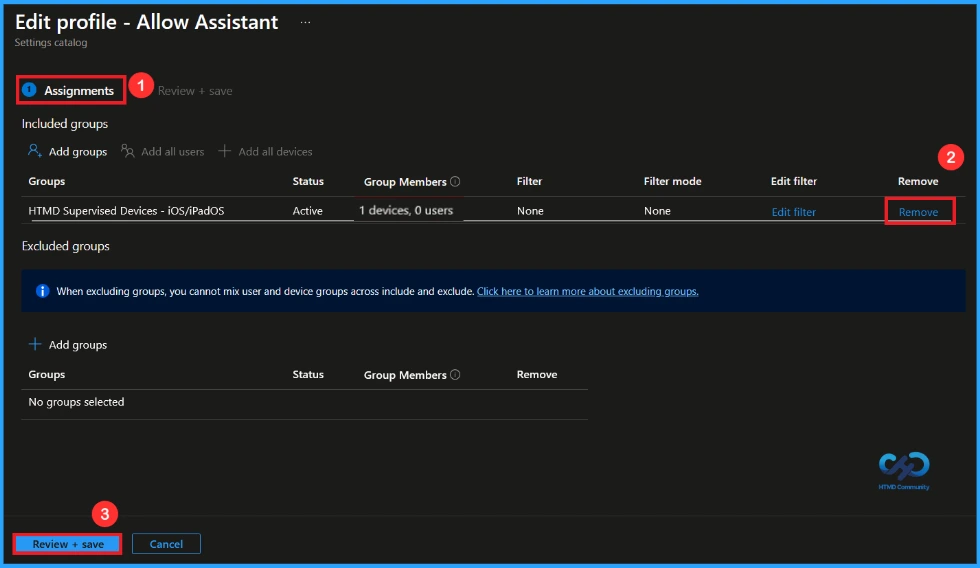
After creating a policy, if you want to delete a specific group that you selected earlier, you can do it easily. First, go to Device > Configuration policies. In the Configuration policies section, search for and select it policy. In the Tasks section you will find Edit choice and click on. Then, click Delete choice.
For more information, you can refer to our previous post – Learn How to Delete or Unassign Apps from Intune using Step by Step Guide.
Remove this Policy from the Intune Portal
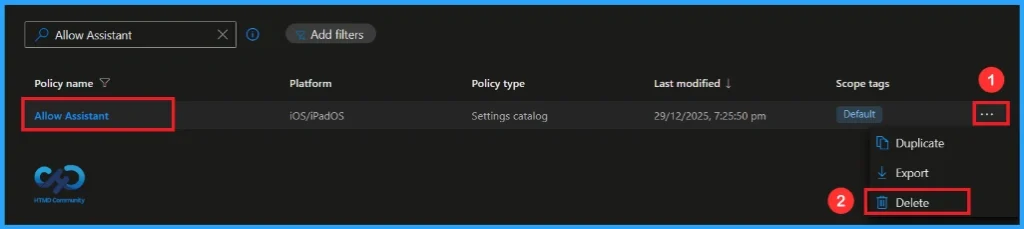
If you want delete this policy for any reason, you can do it easily. First, look for for this policy name (Allow Assistant)in configuration section. When you find the policy name, you will see a 3 points menu next to it. Click on the 3 dots, then click Delete knob.
For more information, you can refer to our previous post – How to Remove Allow Clipboard History Policy in Intune Step by Step Guide.
Need More Help or Have a Technical Question?
Join LinkedIn Page And Telegram Group to get step by step guides and latest news updates. Join us Meet Page to participate in User group meetings. Also, Join WhatsApp Community to get the latest news about Microsoft Technologies. We were there RepeatDhe as well.
Author
Anoop C Nair has been a Microsoft MVP from 2015 onwards for 10 years in a row! He is a Workplace Solutions Architect with over 22+ years of experience in the Workplace technology space. He is also a Blogger, Speaker, and Local User Group Community leader. The main focus is on Device Management technologies such as SCCM and Intune. He writes about technologies like Intune, SCCM, Windows, Cloud PC, Windows, Entra, Microsoft Security, Career, etc.
News
Berita Teknologi
Berita Olahraga
Sports news
sports
Motivation
football prediction
technology
Berita Technologi
Berita Terkini
Tempat Wisata
News Flash
Football
Gaming
Game News
Gamers
Jasa Artikel
Jasa Backlink
Agen234
Agen234
Agen234
Resep
Cek Ongkir Cargo
Download Film
Originally posted 2026-01-17 08:53:51.